Use these steps to add the Flex Imaging Option to a series in an existing protocol to acquire multiple echoes resulting in water suppressed, fat suppressed, fat and water in-phase, and fat and water out-of-phase processed images.
From the Imaging Options screen, select Flex and any other compatible imaging options.
Click More to view scan Mode and PSD selections.
Flex is compatible with 2D or 3D scan mode.
Flex compatible with the following pulse sequences:
2D FSE family and either 2D FSE or 2D FSE with Fast Recovery Imaging Option (FRFSE-XL)
3D FSE family and Cube
3D Gradient Echo LAVA or VIBRANT
DISCO application
Click Accept to close the Imaging Options screen.
From the right side of the screen, click Coil tab to view the coil selected by Auto Coil.
From the Series Summary panel, click the and select the patient position and patient entry.
Adjust the scan parameters, as needed.
In 2D FSE, 2D FSE with Fast Recovery, and 3D Cube with scan parameters for T2,Flex has two different acquisition mode: single-TR mode and multiple-TR mode. This multiple-TR mode doubles the minimum scan time required and the effective NEX for a given prescription. In this mode, if a non-Flex prescription uses 2 NEX, prescribe 1 NEX to get equivalent SNR with a Flex acquisition.
For these sequences, a single-TR scan mode is enabled by the Fast single TR bipolar acquisition User CV, 1 = On, 0 = Off. If selected, all echoes required for fat-water separation are acquired in a single acquisition. This can reduce or even eliminate the additional scan time requirement for Flex, but may introduce some chemical shift effects to the image and limit the maximum achievable resolution in the frequency direction, especially at 3T. This will also triple the effective NEX, but increase the minimum bandwidth that can be prescribed. For most protocols, SNR increases slightly from a non-Flex scan.
If Fast single TR bipolar acquisition is selected, only certain combinations of FOV, frequency matrix size, and bandwidth are allowed to achieve the specific echo spacings required for Flex water-fat separation. It is best to first prescribe the desired FOV and frequency matrix size before prescribing bandwidth. A single recommended value for bandwidth is displayed in the menu. You may override the recommended value by typing in a bandwidth, though the range of available bandwidths may be limited based on the prescription and system configuration.
The maximum allowed frequency matrix size may be limited as well. Increasing FOV will typically increase the maximum allowed frequency matrix size.
For both LAVA and VIBRANT acquisitions, use the following recommended TE values. These TE ranges limit the maximum frequency matrix size that is available.
1.5T: have the out-of-phase TE range within 2.0 to 2.5 ms and the in-phase TE range within 4.0 to 5.3 ms.
For these sequences, a multiple-TR mode is selected by the User CV Multiple TR acquisitions 1 = On, 0 = Off. When turned on with smaller FOVs, it keeps in-phase and out-of-phase TE values within an acceptable range. The scan time increases, so it is most suitable for nonbreath-hold acquisitions.
On the Scan Parameters screen menu bar, click the of the Scan Parameter screen to open the Details tab.
From the Details tab, select the Dixon images you want reconstructed (in-phase or out-of-phase).
Figure 1. Dixon selection area of Details tab
All Flex prescriptions have Fat and Water automatically selected, therefore Water and Fat image are always generated.
From the menu bar on the Scan Parameters screen, click the to open the Graphic Rx Toolbar.
Click SAT and select spatial saturation pulses in the desired locations.
Flex is not compatible with chemical saturation but is compatible with spatial saturation.
Click the Protocol Notes tab in the Protocol Edit Session Control Panel to open the Protocol Notes screen.


 and select the patient position and patient entry.
 of the Scan Parameter screen to open the Details tab.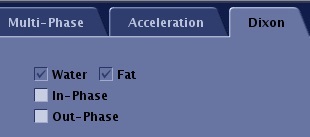
 to open the Graphic Rx Toolbar.