- 00000018WIA3018D770GYZ
- id_400213231.4
- Aug 14, 2022 5:20:22 PM
Scan Rx parameters
The Scan Parameter screen displays when each series in the Workflow Manager is placed in the Setup state.
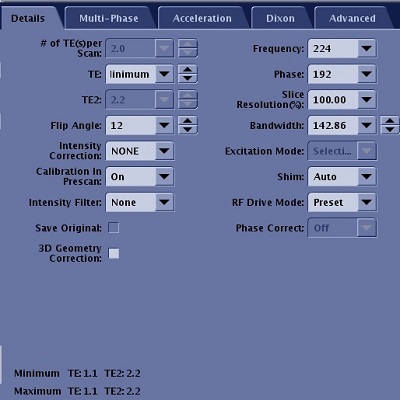
The scan parameters that can be selected from this area change based on the selected protocols. Scan parameters that do not appear on this screen can be viewed by clicking Details on the Scan Parameters menu bar. The Details tab may have multiple tabs from which all scan parameters for the active series can be viewed and edited.
Example of scan parameter screens
Scan Parameters vary depending on the mode and PSD.
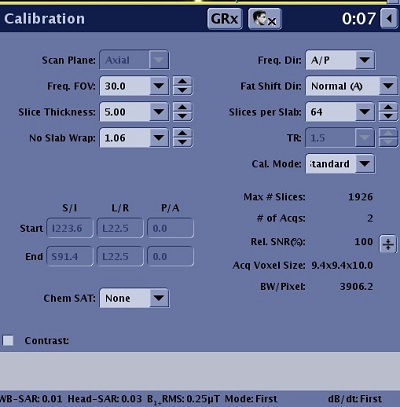
For details about calibration scans, see Calibration scan procedure.
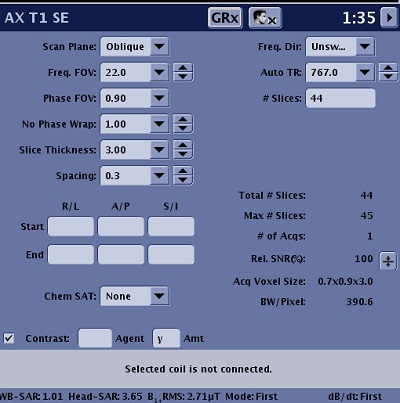
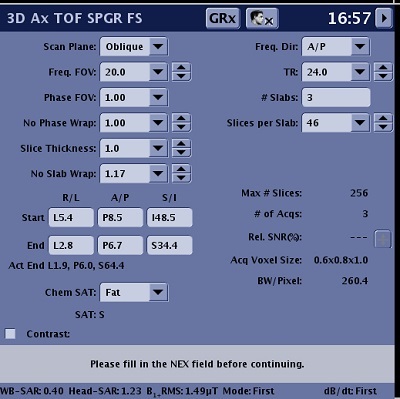
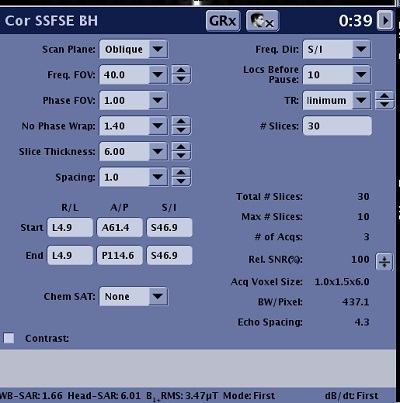
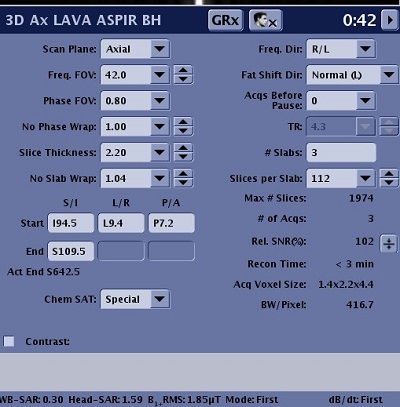
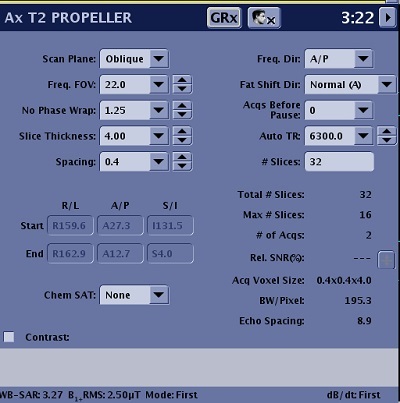
Scan parameters menu bar

- Series description appears on the left side of the menu bar.
- If the Graphic Rx toolbar is not visible, click the GRx icon to open it.
- Click the Auto Voice icon to open the Auto Voice screen.
- The scan time of the active series is displays.
- The arrow icon opens the additional parameters screens, which may have multiple tabs.
Figure 8. Example of additional tabs 
Advisory area
The content changes based on the active series.
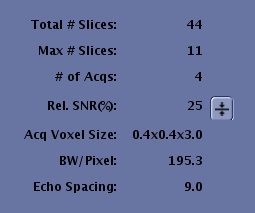
For details, see Advisory area.
Chem SAT pull-down menu
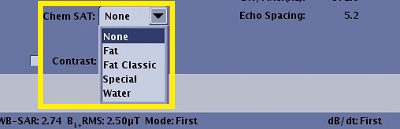
There are several selections from the saturation menu:
- Fat SAT
- Water SAT
- SPECIAL
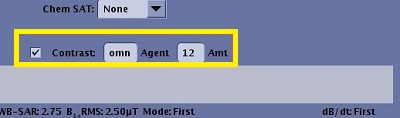
Contrast
For Contrast details, see Contrast Amount and Type.
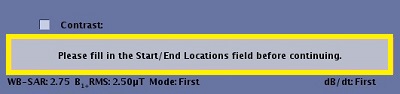
Messages
Message related to the series that is in an INRX state are displayed in this area. Typically, the messages direct you to complete the scan parameters so that you can proceed to save the prescription and scan the series.
SAR and dB/dt
Details tab
On the Scan Parameters screen menu bar, click the  of the Scan Parameter screen to open the Details tab over the lower-right viewport. The scan parameters available on the Details tab are dependent on the selected pulse sequence and options. Note that the minimum and maximum available TE values are displayed at the bottom of the Details tab.
The Details tab content varies depending on the selected PSD, coil configuration, Imaging Options, and your system configuration.