
- Object ID: 00000018WIA30681970GYZ
- Topic ID: id_40025765 Version: 1.4
- Date: Mar 3, 2022 1:40:19 PM
Multi Station: set up for a peripheral exam
About this task
Use these steps to set up a Multi Station series for a peripheral run-off exam.
Multi-Phase with multi-station and QuickSTEP
If Multi-Phase is selected, it only applies to Arterial Phase acquisition. Mask and Venous phases remain as single phase scans.
Step-by-step instructions
- From the Workflow Manager, select the multi-station series and click Setup.
- The Multi Station tab displays. Make parameter adjustments, as needed and click Save Rx.
Figure 1. QuickStep and Multistation Task screen 
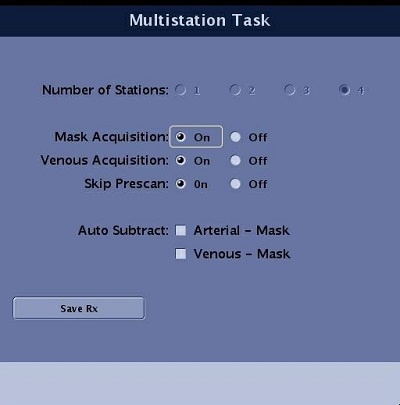
- Number of Stations = 3 or 4
- The Number of Stations does not appear on the Multi Station tab if the protocol is pre-built and loaded into the Workflow Manager from the Site or GE library. Therefore, you are not able to change the number of stations. This is expected behavior for pre-built multi-station protocols and Copy/Pasted multi-station protocols. The only time this selection appears is when you are building a protocol.
- Mask Acquisition = On (optional)
- Venous Acquisition = On (optional)
- Multi-phase selection only applies to Arterial phase and only a single phase is collected with Mask and Venous acquisitions. You can use all three acquisition types within the same examination series. Perform a Mask acquisition when performing a CEMRA exam to ensure correct volume placement when post processing subtraction is performed.
- When Skip Prescan is On, it means that prescan data is only acquired from the top station and the other stations have the prescan values calculated from the first station. Skip Prescan is Off acquires prescan data from each station.
- Auto Subtract selections automatically generate subtracted images.
- Number of Stations = 3 or 4
- From the Workflow Manager, click the folder icon to open or expand the Multi Station series. Select each sub-task, click Setup and make scan parameter adjustments to each series.
Figure 2. Folder icon open displays sub-series 
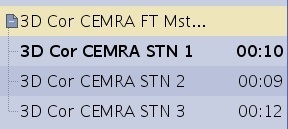
- Patient Position: Coil = Body, Description = 3D Cor CEMRA STN 1
- For more details on coil selection, see Multi Station: acquire a localizer scan.
- Imaging Parameters: Plane = Oblique, Mode = 3D, Pulse Seq. Family = Vascular, Pulse Sequence = Fast TOF SPGR, Imaging Options = Multi Station, ZIP 512, and either SmartPrep or Fluoro Trigger
- If an ASSET compatible coil is selected, ASSET can be selected and it will only be applied to the first station.
- The second and later stations are acquired with ASSET turned off.
- Scan Timing: TE = Minimum, Flip Angle = 30
- Scanning Range: FOV = 46 to 48, Slice Thickness = 2.4 to 2.8, Scan Locs = 32 to 40
- Frequency and Phase range= 32 to 512
- NEX = 1
- Phase FOV range 0.5 to 1.0.
- Shim = Auto
- Contrast = enter amount and type
- Patient Position: Coil = Body, Description = 3D Cor CEMRA STN 1
- Click the Vascular tab and make parameter adjustments, as needed.
- Projection = 19
- Collapse = On
- Click the Advanced tab and select User CV values, if needed.
- Maximum Monitor Period (SmartPrep only) = 30 to 40
- Image Acquisition Delay = 5 to 8
- k-space filling = Centric (top)
- Because of the rapid contrast transit time and the need for high signal and spatial resolution of the lower station, it is recommended to use the Elliptic-Centric option for the lower station. Scan times of 40 to 50 seconds are possible with little venous contamination in the arterial phase due to the efficient k-space filling scheme. Image reconstruction for these sequences may be longer than other sequences.
- Elliptic-centric and SPECIAL are not compatible. Use one or the other.
- Turbo Mode = 2 (optional)
- The contrast bolus can circulate throughout the body more quickly than all stations can be acquired. Thus, the diffusion of contrast into stationary tissue and venous structures can reduce visualization of arterial structures. To minimize scan times and decrease these effects, increase the bandwidth up to +/- 83.125kHz and enable Turbo Mode (if applicable).
- Real Time SAT (Fluoro Trigger only) = 0
- Restricted Real Time Navigation (Fluoro Trigger only) = 0
- From the Graphic Rx toolbar, click the
. - From the Select Series screen, select the STN 1 2D TOF SPGR series, and then click OK All.
- Place the cursor over the area of interest and click to deposit the 3D volume. Adjust the angle and location as needed while keeping the center tick mark over the I/S 0 mm horizontal reference line.
- Select SPECIAL for both the top and middle stations that use Centric k-space filling technique, if desired.
- If using SmartPrep, position the tracker cursor on the top station localizer.
- For TOF sequences with SmartPrep, bolus tracking is used only at the first station. SmartPrep tracking is not used for the mask and venogram meta-series.
- Click Save Rx.
- Copy/Paste is allowed for a meta-series. The entire meta-series will be copied and pasted. You cannot copy/paste any single station.
- Repeat steps for each station, picking the appropriate meta-series.
- Double-click each station to adjust the scan parameters.
- Select the appropriate localizer series (STN 2 2D TOF SPGR and STN 3 2D TOF SPGR) and then select OK All.
- Change the Description field (3D Cor-CEMRA STN2 and 3D Cor CEMRA STN 3), the coil, and k-space filling technique, Centric for top and middle station, Elliptical Centric for bottom and any other stations.
- For compatible 3.0T systems, confirm that the RF Drive mode setting is the same for each station.
Each new Multi Station series is viewed as a new prescription for a Multi Station meta-series. This is expected behavior.
- Scan the Multi Station series.
