

- 00000018WIA30B3C770GYZ
- id_400258211.4
- Mar 3, 2022 12:36:31 PM
MAGiC: post-process apply a user mask
About this task
The user mask measures the volume of a user defined region(s). The volume is calculated using the voxel volume, including the underlying slice gap. The volume of the user mask can include all, or part of each voxel.
The user mask can include tissue both inside and outside the intracranial mask. The mask can be used to segment the volume of specific tissues, lesions and anatomies.
A user mask is created by adding or removing regions. Use these steps to add or remove:
- regions marked by an ROI
- segmented tissue marked by an ROI
- copied slices from a segmentation group
Step-by-step instructions
- From the MAGiC menu bar, click the
 to make it active.
 - Press X after the Auto ROI tool has been activated to toggle between adding to the user mask and subtracting from the user mask.
- Auto ROI tool is initially in the add mode. When it is in the subtractive mode, the mouse cursor changes to a minus sign.
- Place the cursor in the desired viewport, left-click on a contrast weighted image or segmentation overlay and it is automatically segmented and added to the user mask.
Figure 1. Example of a user mask 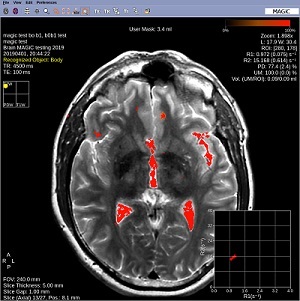
- A ROI is created around the segmented region.
- If the segmented region overlaps with existing user mask the ROI is created around the whole region.
- In the addition mode the region is added to the user mask
- In the subtractive mode, the region is subtracted from the user mask.
-
Note: that when used on contrast weighed images, the functionality is primarily designed for easier selecting findings small areas of interest.
- To edit the user mask, follow these steps.
- Place a cursor in the ROI you want to change.
Figure 2. ROI around area to change 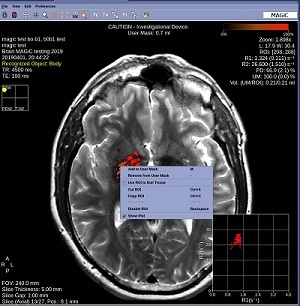
- Right-click to open the right-click menu.
Figure 3. ROI right-click menu 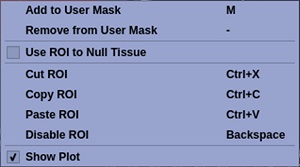
- Click Add to User Mask.
- All voxels within the ROI are added to the user mask. The total volume of each voxel is included in the user mask volume.
- Click Remove from User Mask.
- All voxels within the user mask ROI are removed.
- Click Use ROI to Null Tissue.
- The contrast /color of the user mask remains the same, but all pixels within the image that are the have the same pixel intensity are turned black. For example, if your user mask ROI is inside pathology, Use ROI to Null Tissue to change all other pixels with the similar intensity as the pathology to black. This is done through an inversion pre-pulse with an optimized TI.
Figure 4. User mask on left and ROI to Null Tissue on right 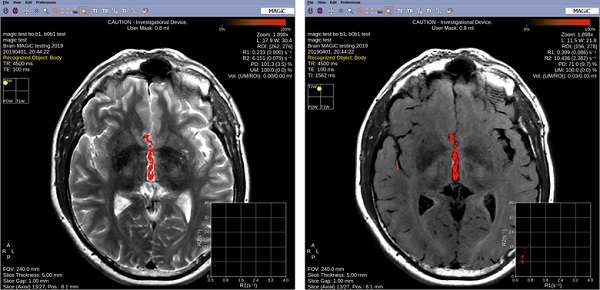
- The contrast /color of the user mask remains the same, but all pixels within the image that are the have the same pixel intensity are turned black. For example, if your user mask ROI is inside pathology, Use ROI to Null Tissue to change all other pixels with the similar intensity as the pathology to black. This is done through an inversion pre-pulse with an optimized TI.
- Click Cut ROI, Copy ROI, Paste ROI, Disable ROI to modify the ROI.
- Click Show Plot to toggle the plot in the lower right corner on/off.
- Place a cursor in the ROI you want to change.
- To remove the background to only view the mask, right-click in the viewport and select Disable Background.
- The color can only be turned off after the background is disabled.
- When the background is disabled, you can window the segmentation map in the same way as windowing a contrast image or a quantitative map.
Figure 5. Image on right has Disable Background selected 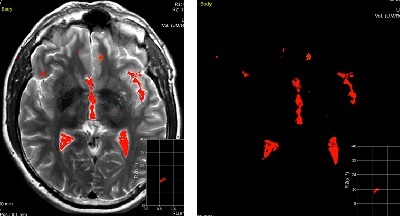
- To save a user mask, follow these steps.
- Place the cursor in the viewport of the mask you want to save.
- From the menu bar, click File.
- From the File menu, click Save User Mask.
- The first time you save a user mask from a MAGiC image, the system prompts with a message informing that it must first generate a SyMap. Respond to the prompt and click .
- From the Save box, type and enter a name and click OK.
Figure 6. Save User Mask screen 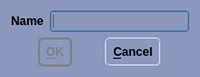
- The user mask is saved to the patient list as a GSPS file type.
- Several user masks can be saved.
- To view a table of the user masks, see MAGiC: post-process display a segmentation table.
- All voxels are removed from the user mask and the user mask volume is set to zero.
- To launch a user mask from the patient list, follow these steps.
- From the patient list, click a MULTI_QMAP series type.
-
Note: that SyMap is labeled as a QMAP in the patient list.
Figure 7. Select a SyMap series 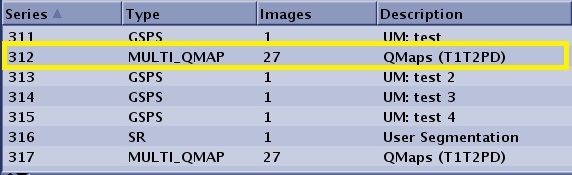
- A list of all the User Maps displays if there are multiple maps.
-
- From the Session Apps list, click MAGiC.
- A list of all user masks associated with the MUTI_QMAP series appears.
- If there is only one map, MAGiC is automatically launched.
Figure 8. User Maps associated with the SyMap series. 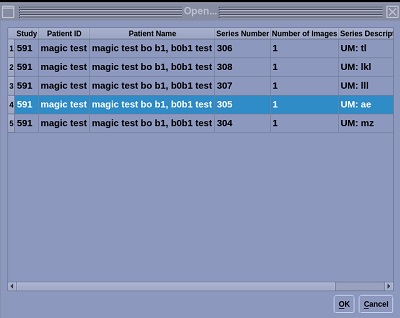
- Select a user map and click OK.
- MAGiC is launched and the selected user mask appears in the lower left viewport.
- From the patient list, click a MULTI_QMAP series type.