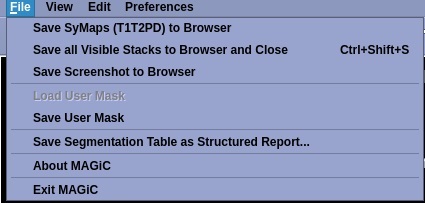
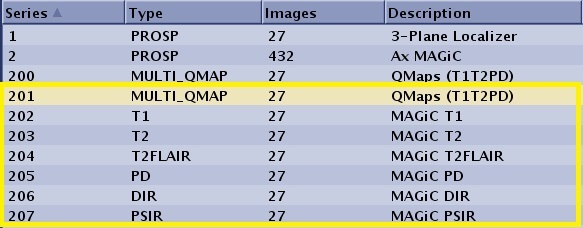
Save SyMaps (T1T2PD) to Browser: Saves images as black/white (non-color), which is different from how they are viewed in the MAGiC session application. The series is saved as a MULTI_QMAP series type. Figure 2. Save SyMaps® (T1T2PD) to Browser
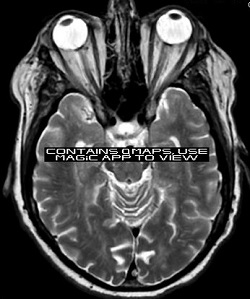
Each image is labeled “Contains QMAPS, use MAGiC app to view". Figure 3. QMAP image label
Save all Visible Stacks to Browser and Close: All visible viewports with synthetic image series are saved in DICOM-format to the patient list and then the screen closes.
The first series is saved as a MULTI_QMAP series type and the other series are labeled as the type of contrast, for example: T1, T2, T2FLAIR, PD, DIR (Double-IR white matter suppression), PSIR. Figure 4. Save all Visible Stacks to Browser and Close Browser series
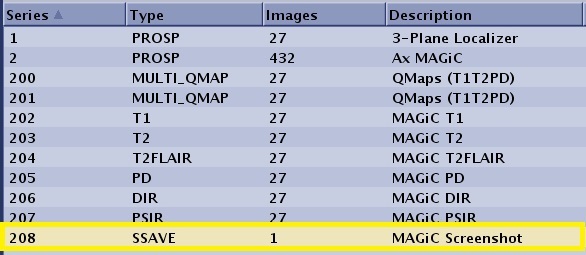
Save Screenshot to Browser: Place the cursor over a viewport to make it active. The Save Screenshot to Browser menu item saves the image in the active viewport to the patient list in DICOM format.
The single image is saved as a SSAVE series type. Figure 5. Save Screenshot to Browser patient list
Load User Mask: The last saved user mask is loaded. Any current changes are replaced by the last saved mask.
Save User Mask: Displays a screen from which you can enter a name for the user mask. It is saved as a GSPS file type. It is possible to save several user masks with different names.
Save Segmentation table as Structured Report: Saves as a SR series type. Export the series to a USB device to view the table in another compatible software.
About MAGiC: Displays a screen with the software version and a description of MAGiC.
Exit MAGiC: Closes the application.
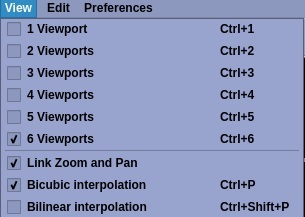
Figure 6. View menu
Viewports: Allows 6 options.
Link Zoom and Pan: When you left-click and drag the image roams and magnifies simultaneously.
Bicubic interpolation: Applies a smoother visualization of contrast weighted images and SyMaps®. Interpolation of images is active by default and is always linked between all viewports.
Bilinear interpolation: Applies a linear interpolation first in one direction, and then again in the other direction.
Figure 7. Edit menu
Clear User Mask: Allows you to clear the active user mask.
Figure 8. Preferences menu
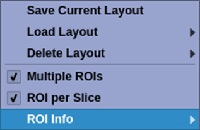
Save Current Layout: Saves the layout for future viewing. The layout determines the tab labels displayed on the scan MAGiC post process screen.
Load Layout: Allows you to select a saved layout.
Delete Layout: Allows you to delete a saved layout.
Multiple ROIs: Allows more than one ROI per viewport. The active ROI has a solid outline while the other ROI have dotted outlines. When Multiple ROIs is off, a ROI is automatically deleted when a new ROI is drawn in the same viewport. When Multiple ROIs is on, existing ROI remain with a dotted outline.
ROI per Slice: Locks ROI to the specific slice where the ROI was drawn. When ROI per Slice is off, a ROI remains visible when scrolling through the slices. When ROI per Slice is on, a ROI is only visible in the slice where it was drawn. When scrolling to a different slice, the ROI will not be visible.
ROI Info: Is updated to display the statistics for the ROI in the currently visible slice. It is only visible in slices with a ROI.