

- 00000018WIA3082C770GYZ
- id_400220041.5
- Apr 14, 2022 9:30:23 AM
MAGiC: post-process right-click menu options
Use these right-click menu options to manipulate the MAGiC post-process images.
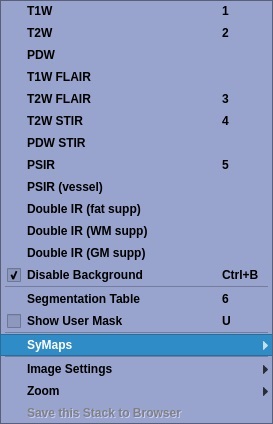
| Right-click option | Description |
|---|---|
|
Contrast selections 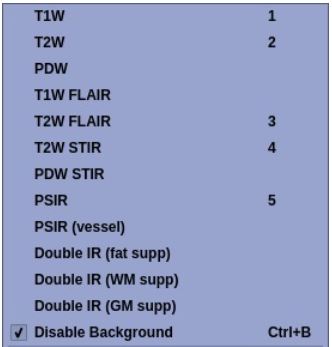 |
Allows you to changes the MAGiC image contrast to any one of the options listed in the right-click menu. |
| Disable Background |
Displays the segmentation maps on a linear scale from black to white, where white is 100 % and black is 0 % tissue content. 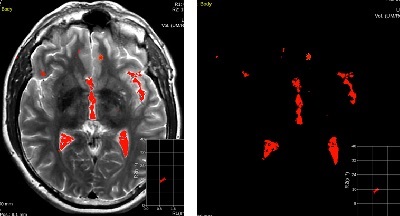 |
| Segmentation Table |
The segmentation table provides volumetric information of all user masks. |
| Show User Mask |
Show User Mask is a toggle that displays or hides the user mask as an overlay in the active viewport. |
| SyMaps® |
The SyMaps® display the measured values for tissue properties per voxel. |
| Image Settings |
Allows you to change image settings. |
| Zoom |
Allows you to magnify/minify the images. |
| Save this Stack to Browser |
Place the cursor on a MAGiC image viewport and right-click Save this Stack to Browser. A synthetic set of images of the MAGiC type in the active viewport are saved to the Patient list/Browser. 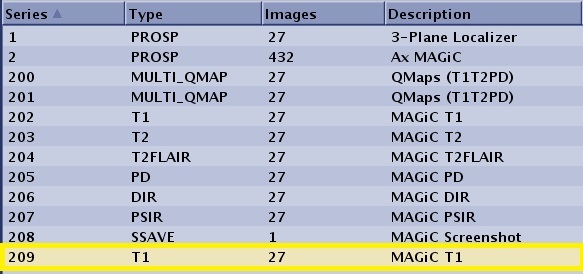 |