

- 00000018WIA3050E770GYZ
- id_400261381.3
- Mar 28, 2022 10:47:22 AM
Image Controls
About this task
Step-by-step instructions
- Select an Image Control icon on the Image Controls panel to change the action of the left mouse button.
Figure 1. Image Controls 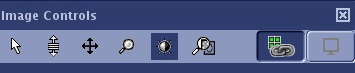
- Click the
 to use the left mouse as a selection function and deactivate all other Image Controls.
 - Click the
 to use the left mouse to scroll through images within the current series. Click and drag up/down or right/left to advance to higher or lower image numbers.
 - Click the
 to use the left mouse to scroll images. Click and drag the image in the active viewport to new location.
 - Click the
 to use the left mouse as a zoom function. Click and drag up to increase the zoom factor and click and drag down to decrease the zoom factor. The zoom factor is annotated in the upper right area of the image. The zoom is applied to the image in the active and forward viewports.
 - Click the
 to use the left mouse to window width and level images. Click and drag the cursor in the following directions to change the W/L:
- Up to brighten the image (the level value decreases)
- Down to darken the image (the level increases)
- Right to widen the window width
- Left to narrow the window width
- Click the
 to use the left mouse as a magnifying glass.
 - Click the
 to connect or disconnect multiple series. For details, see the Link/Unlink viewports procedure.
 - Click the
 to change the viewport area to a 1-on-1 display and then again to reset the format, for example, to a 4-on-1 display.
Figure 2. 1-on-1 display 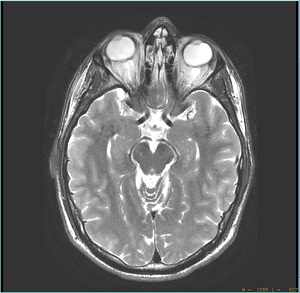
Figure 3. 4-on-1 display 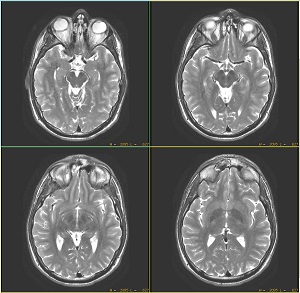
- Click the