Use these steps to apply a Filter in the Viewer to enhance edges or lungs or smooth images. Use the Gray Scale tool to increase the image contrast so that the image has a more black and white appearance.
Step-by-step instructions
Open the Viewer
Click the viewport in which you want to change the filter.
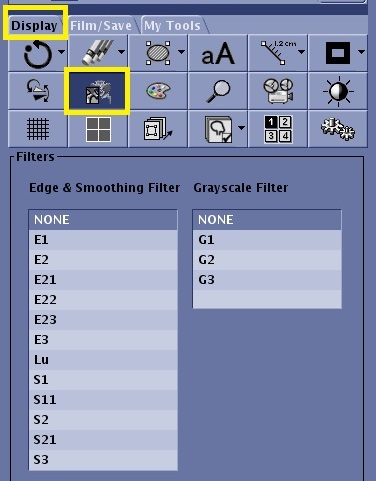
From the Display tab, click the Filter icon.
Figure 1. Filter icon and panel on the Display tab
Choose a filter from the menu.
Edge and Smoothing filters provide a menu of edge or lung enhancement and smooth filters. Images are annotated on the middle right side of the image. For example, FLT: e1. These filters are for viewing only unless the image state is saved.
The edge filters make the edges sharper. It enhances small contrast differences between adjacent tissues. For example brain and pituitary gland, T1-weighted contrast where the contrast is flat.
The smooth filters soften the edges. It reduces high contrast variations between adjacent tissues. For example, low SNR images, CEMRA, MRCP, and with some musculo-skeletal applications.
Gray Scale filters enhancement adjusts the gray scale to one of three different levels. The enhancement increases the image contrast so that the image has a more black and white appearance. There is no Image annotation when the gray scale is changed.