

- 00000018WIA3002E770GYZ
- id_400251521.4
- Mar 28, 2022 12:26:28 PM
Text Page
About this task
Step-by-step instructions
- From the Film/Save tab, click the Text Page icon.
Figure 1. Text page icon and panel on the Film/Save tab 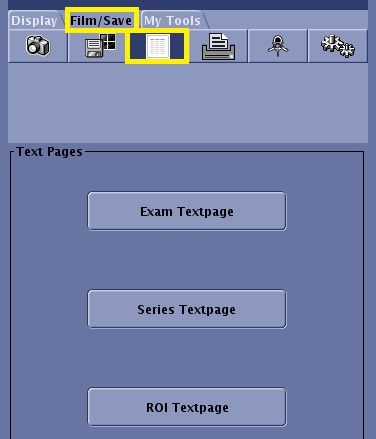
- Click the desired text page: Exam Text page, Series Text page, ROI Text page.
Figure 2. Example of an Exam Text Page screen 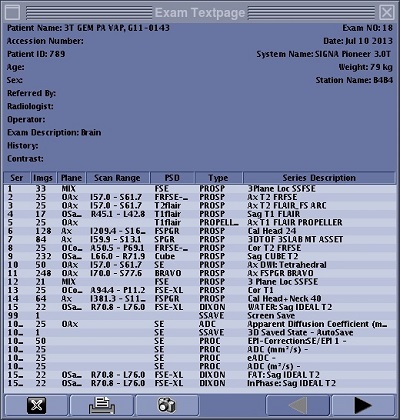
- The text page contents is based on the patient demographic information entered during patient registration or the ROI details. A list of all series acquired within the exam is displayed for the exam text page.
Figure 3. Example of a Series Text Page screen 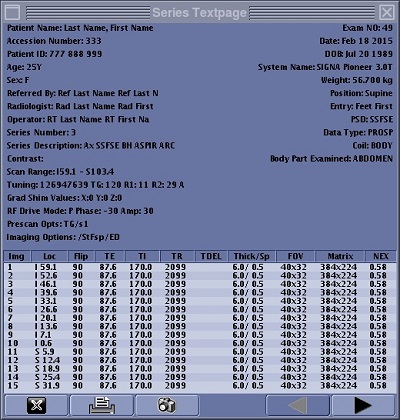
- A list of all images acquired within the selected series is displayed for the series text page.
Figure 4. An example of the ROI text screen 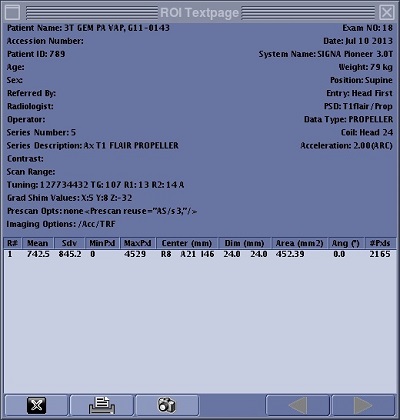
- A list of all ROIs currently displayed.
- The text page contents is based on the patient demographic information entered during patient registration or the ROI details. A list of all series acquired within the exam is displayed for the exam text page.
- Select one of the options on the bottom menu bar.
- Click the Film icon (
 ) to put the page in the next available frame in the film composer.
 - Click the Screen Save icon (
 ) to add a SSAVE image type to the patient's exam. It is saved as series #98.
 - Use the Next/Prior arrows (
 ) to navigate through the text pages.
 - Click the Quit icon (
 ) to close the window.
- Click the Film icon (