About this task
Use these steps to change the annotation level on the display image or the film image.Step-by-step instructions
- Open the Viewer.
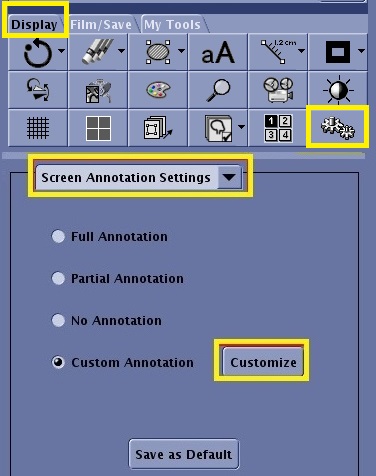
- From the Display tab or the Film/Save tab, click the Tools icon.
Figure 1. Tools icon on the Display tab
- From the Settings menu, select Screen Annotation Settings.
- From the Screen Annotation Settings panel, select the desired annotation option.
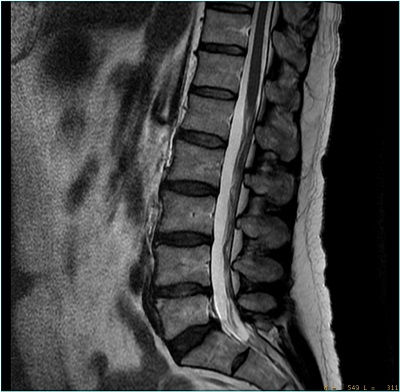
- No Annotation removes all annotation and graphics. It does not remove the window width and level. Figure 2. No Annotation
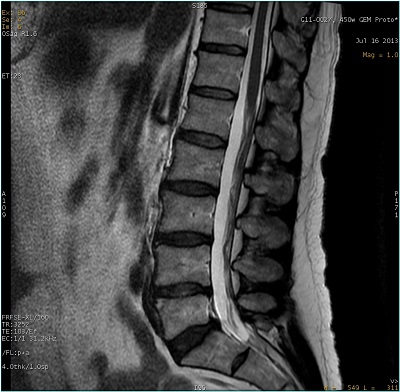
- Partial Annotation displays a subset of the full annotation. Figure 3. Partial Annotation
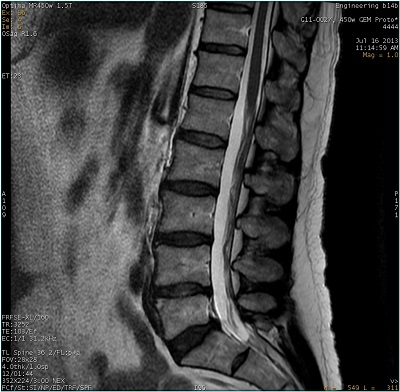
- Full Annotation displays all annotation. Figure 4. Full Annotation
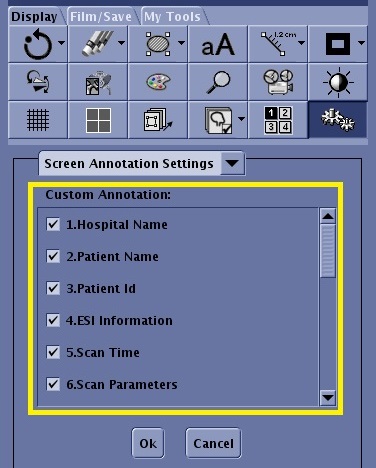
- Select Customize to display a list of the items that can be selected for display.
- Select the desired annotation options.
- Click OK.
Figure 5. Customize screen
- See the image annotation procedure to view an image with the customize annotation areas identified.
- Click Save as Default to save the annotation settings for future viewing sessions.