

- 00000018WIA30CBD770GYZ
- id_400270561.3
- Mar 28, 2022 12:35:21 PM
Zoom
About this task
Step-by-step instructions
- Open the Viewer.
- Use these steps to zoom an image using the Display tab.
- Click the viewport in which you want to zoom the image.
- From the Display tab, click the Zoom icon.
Figure 1. Zoom icon and panel on the Display tab 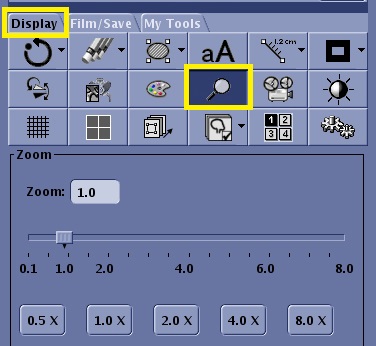
- The Zoom factor value is displayed above the Zoom slider and it is annotated in the upper right area of the image. The minimum factor is 0.5 and the maximum factor is approximately 8.0 and depends on the FOV. Zoom is only applied to the image in the active viewport.
Figure 2. Example of a 2 Zoom factor 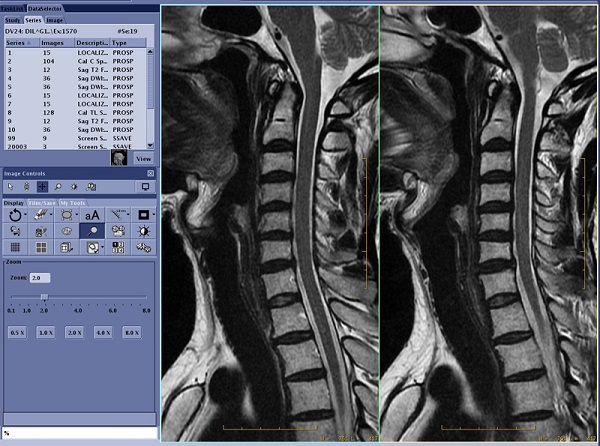
- The Zoom factor value is displayed above the Zoom slider and it is annotated in the upper right area of the image. The minimum factor is 0.5 and the maximum factor is approximately 8.0 and depends on the FOV. Zoom is only applied to the image in the active viewport.
- From the Zoom panel, use any of the following methods to change the image magnification:
- Type and enter a factor in the text field.
- Click a Zoom factor button.
- Use the slider to determine the zoom factor.
- Click the Display Normal icon (
 ) to remove the magnification from the images.
- Use these steps to zoom using the Image Controls or right-click On-View menu.
- Click the viewport in which you want to zoom the image.
- Zoom can be done from either of the following locations.
Figure 3. Zoom icon on the Image Controls panel 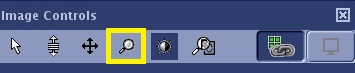
Figure 4. Zoom icon on the right-click on-view menu 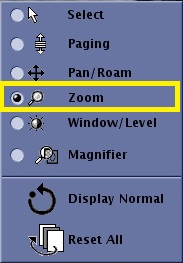
- Place the cursor in the active viewport and click and drag to change the zoom factor.
- Click the Display Normal icon () to remove the magnification from the images.
- Use these steps to zoom using the On-screen active annotation.
- In an image viewport, place the cursor over the orange Mag text and right-click to display the Zoom slider inside the image viewport.
Figure 5. Zoom slider 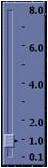
- Click and drag the slider to change the zoom factor.
- Click anywhere within the viewport except the slider to close the slider.
- Click the Display Normal icon () to remove the magnification from the images.
- In an image viewport, place the cursor over the orange Mag text and right-click to display the Zoom slider inside the image viewport.
- Use these steps to change the use of the left-mouse button to zoom using the Magnify glass.
- Click the viewport in which you want to use the magnifying glass.
- Magnifier can be done from either of the following locations.
Figure 6. Magnifier icon on the Image Controls panel 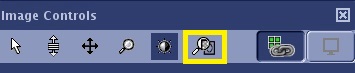
Figure 7. Magnifier icon on the right-click on-view menu 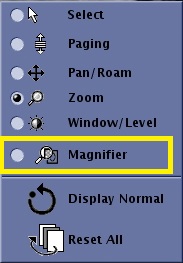
- Place the cursor in the active viewport and click and drag to view the magnified area.