

- 00000018WIA30DDD770GYZ
- id_400248511.7
- Mar 28, 2022 12:02:22 PM
Propagate objects
About this task
Use these steps to propagate objects across all or selected viewports.
Step-by-step instructions
- To propagate the active graphic, follow these steps.
- Click anywhere on the edge of a cyan (inactive) matte to make it yellow and active.
- From the Display tab, click the Selected Object icon.
Figure 1. Selected Object icon and panel on the Display tab 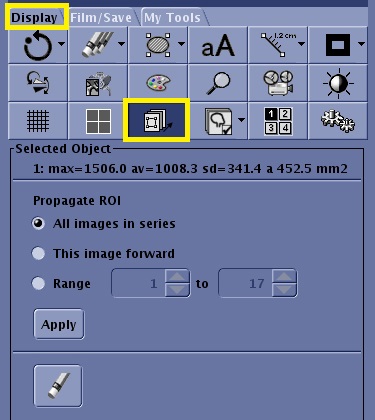
- Make a propagation selection that populates the selected graphic to all or a range of images. Propagation also allows you to change W/L, pan, or zoom.
- Select All images in series to change all images within the series when one image changes.
- Select This image forward to only change the images with a larger number within the series.
- Select Range and specify a range of slices to propagate the measurements.
- Click Apply.
- To erase propagated objects, click the Erase icon (
 ) from the Select Object screen area or from the erase/hide feature.