The Viewer cannot launch a series if it has more than 20,000 images. Select a subset of images in the Patient List and then click Viewer to view the images. When finished viewing the images, close the Viewer and select the remaining images and click Viewer. Alternatively, you can open two Viewers with a subset of each images in each Viewer.
About this task
Use these steps to open the Viewer from multiple locations.
Step-by-step instructions
Follow these steps to open the Viewer work area when a scan session is open and a series is in the "Done" state.
From the Workflow Manager Task or Series Data tabs, click a Scan Sequence or Post Processed Task that is in the "Done" state.
The series can be selected from either the Task or Series Data tabs.
From the Scan/Task control screen, click View.
Click the Display tab to open the Display control panel.
Note: The does not appear when the Viewer is accessed from scan.
Follow these steps to open the Viewer work area from the Session Apps list when series is in the "Done" state.
Click the to open the Image Management work area.
From the Patient List, select a patient exam/series.
To select multiple series, simultaneously press Ctrl + the desired series. For a contiguous list of items, simultaneously press Shift + the first and last series.
From the Session Apps list, click Viewer. You can also double click the series or the thumbnail image to launch Viewer. This does not apply if multiple series are selected from the patient list.
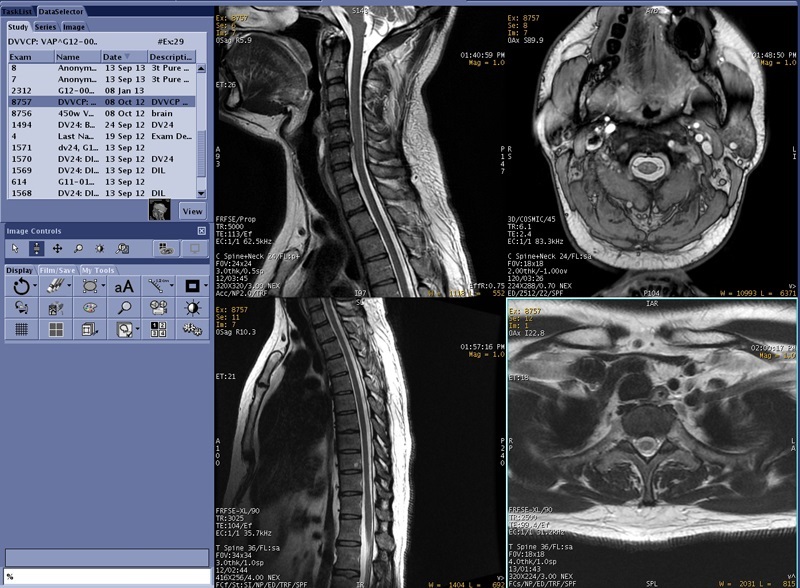
Figure 1. Viewer with multiple series launched
Follow these steps to select a study, series or image once the Viewer is open.
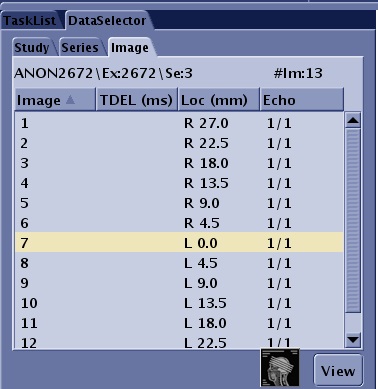
From the Data Selector, click the Study, Series or Image tabs.
Figure 2. Data Selector area of the Viewer desktop
The Study tab displays all exams that have the currently selected patient ID.
The Series tab displays all series in the currently selected study.
The Image tab displays all images in the currently selected series.
Click the desired item from one of the lists and click View. The viewports update based on your selection.
If you have multiple series displayed in the viewports, then complete the following steps to change a series in one of the viewports.
Click the viewport in which you want to place a new series, to make it active.
From the Series tab in the Data Selector, click the desired series.


 does not appear when the Viewer is accessed from scan.
 to open the Image Management work area.