

- 00000018WIA30C77970GYZ
- id_400265751.3
- Mar 28, 2022 12:00:28 PM
My Tools
About this task
Step-by-step instructions
- Open the Viewer.
- Add icon method 1: follow these steps to add a display icon to My Tools tab.
- From the Image Controls panel, click the Display tab.
Figure 1. Display tab 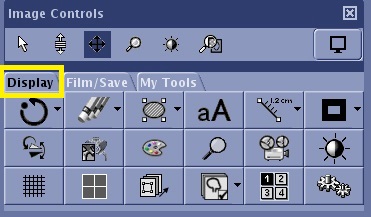
- From the Display tab, place the cursor over the Display icon you want to add to the My Tools tab and right-click.
Result
A message displays indicating that the icon is added to My Tools tab.Figure 2. Example when an icon is added from Display tab 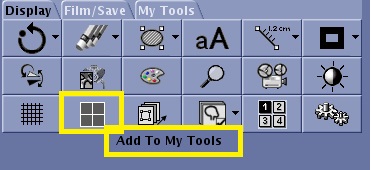
- Click My Tools tab to verify that the icon has been added.
Figure 3. Icon added to My Tools tab 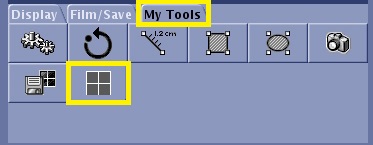
- From the Image Controls panel, click the Display tab.
- Add icon method 2: follow these steps to add a display icon to My Tools tab.
- From the My Tools tab, click the Settings Tools icon.
Figure 4. Settings icon and panel from the My Tools tab 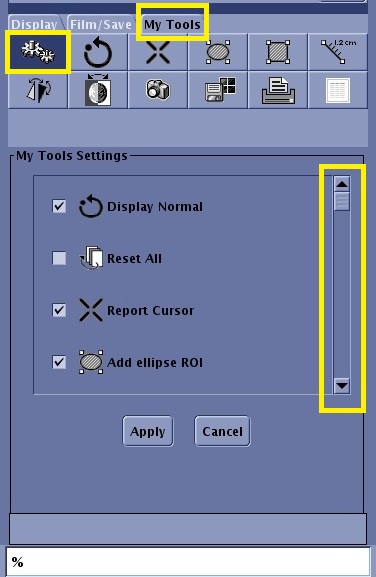
- From the My Tools Setting panel, click the desired icon check boxes you want to add to the My Tools tab. Use the scroll bar to view all possible selections.
- Click Apply.
- From the My Tools tab, click the Settings Tools icon.
- Remove icon method 1: follow these steps to remove a display icon from the My Tools tab.
- From the Image Controls panel, click the My Tools tab.
- From the My Tools tab, place the cursor over the Display icon you want to remove from the My Tools tab and right-click.
Result
A message displays indicating that the icon is removed from My Tools tab.
Figure 5. Remove an icon from My Tools tab 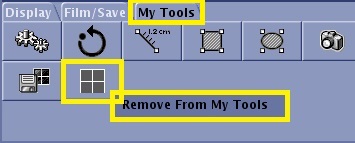
Figure 6. The icon is removed from the My Tools tab 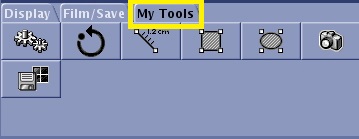
- Remove icon method 2: follow these steps to remove a display icon from the My Tools tab.
- From the My Tools tab, click the Setting Tools icon (
 ).
). - From the My Tools Setting panel, click the desired icon check boxes you want to remove from the My Tools tab.
- Click Apply.Alternatively, click Cancel to exit the My Tools Setting panel.
- Click the My Tools tab to verify that the icon has been removed.
- From the My Tools tab, click the Setting Tools icon (