Use the Matte tool to eliminate unwanted information or artifacts on or around an image when displaying or filming images. The size of the matte can easily be adjusted to fit the size of the area of interest.
Step-by-step instructions
Open the Viewer.
Click the viewport in which you want to matte the image.
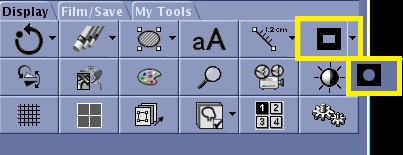
From the Display tab, click the arrow next to the Matte icon and select the Rectangular or Elliptical Matte icon.
Figure 1. Matte icon and menu on the Display tab
Click and drag the solid box to move the matte.
Figure 2. Move matte
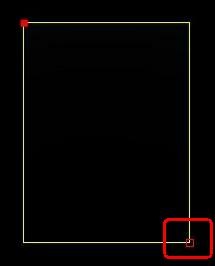
Click and drag the open box to change the matte size and shape.
Figure 3. Size and shape matte
Click outside the image (on the matte) to show the boxes that allow you to resize it or move it. Click on the image (inside the matte) to fix the matte.
To propagate the matte, follow these steps.
Click anywhere on the edge of a cyan (inactive) matte to make it yellow and active.
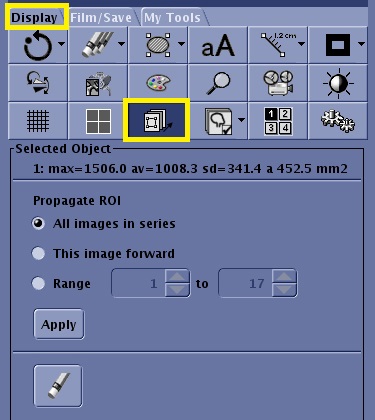
From the Display tab, click the Selected Object icon.
Figure 4. Selected Object icon and panel on the Display tab
Make a propagation selection that populates the selected graphic to all or a range of images. Propagation also allows you to change W/L, pan, or zoom.
Select All images in series to change all images within the series when one image changes.
Select This image forward to only change the images with a larger number within the series.
Select Range and specify a range of slices to propagate the measurements.
Click Apply.
To erase propagated objects, click the Erase All icon () from the Select Object screen area or from the erase/hide feature.
Use these steps to remove a matte from an image.
Click anywhere on the edge of a cyan (inactive) matte to make it yellow and active.
To delete an active matte from a single image, do one of the following.
Press Delete.
From the Display tab, click the Erase Currently Selected icon ().
To delete an active matte from all images within the current series, from the Display tab, click the Erase All icon ().



 ) from the Select Object screen area or from the erase/hide feature.
 ).
).