Use one of the following procedures to select images for display in the Viewer.
Step-by-step instructions
Open the Viewer.
Use these steps to select an image using active image annotation.
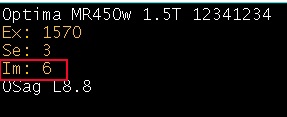
Place the cursor over the orange image number annotation in the upper-left corner of a viewport.
Figure 1. Orange image number annotation
Click to increment the current image.
Right-click to decrement the current image.
Use these steps to select an image using the Command Line,
Place the cursor in the Command Line.
Type I XX and press Enter, where XX is the desired image number. The image number appears in the active left viewport.
Use these steps to select an image using the keyboard.
Press Page Up to increment the current image.
Press Page Down to decrement the current image.
Press Home to display the first image.
Press End to display the last image.
Use these steps to select and image using the control panel.
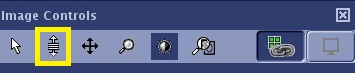
From the Image Controls panel, click the Image Page icon to change the left mouse control to slice number control.
Figure 2. Image Page icon on the Image Controls panel
Place the cursor in a viewport and click and drag up or right/down or right/left to advance to higher or lower image numbers.
Use these steps to select an image using the viewport slider bar.
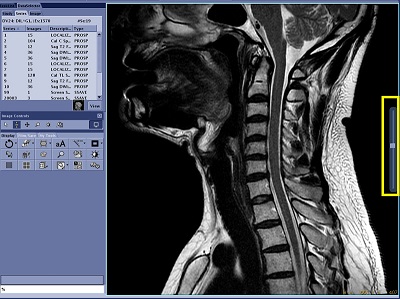
Place the cursor over the right-side of the viewport to view the slider.
The slider may span more than one viewport. For example, if you have 2 series displayed in a 4 viewport layout, then the slider spans two viewports. Figure 3. Slider on right side of viewport in a 1 x 1 display layout
Click and drag the slider bar to view images within the series.
If multiple series are displayed in the Viewer, to make the scroll bar control only the active viewport, from the Viewer control panel click the Ports icon ().
When the squares in the icon are green, the viewports are linked.
When the squares in the icon are black, the selected viewport is unlinked.


 ).
).