Before you begin
Consider this information when you use the Grid tool.- The Grid tool overlays an image in the active viewport with a set distance between the marks on each grid axis.
- A grid can be applied to all images in the series.
- Grid preferences can be made from the Display tab Tools screen.
About this task
Use these steps to turn on a grid. It remains on until you turn it off.Step-by-step instructions
- Open the Viewer.
- Click the viewport in which you want the grid to appear.
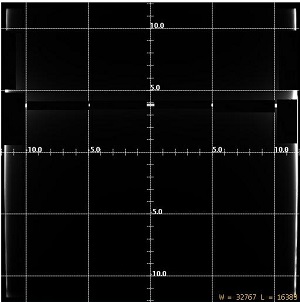
- Use these steps to place a grid (matrix) over the primary image to measure anatomy or pathology on an image.
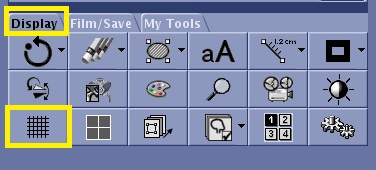
- From the Display tab, click the Grid icon to turn the grid on and again to turn it off.
Figure 1. Grid icon on the Display tab
Figure 2. Grid on
- Use these steps to move the grid within a viewport(s).
- Click the grid to make it active (blue).
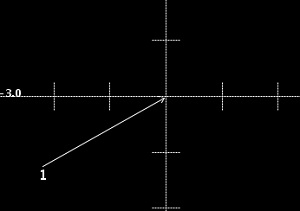
- Place the cursor over the grid intersection point and click and drag it to a new location.
Figure 3. Grid intersection point = 1
- Use these steps to set your grid preferences.
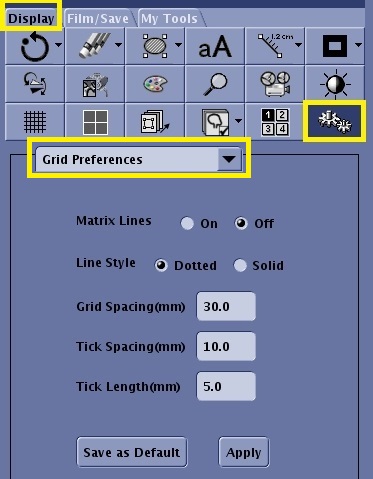
- From the Display tab, click the Tools icon.
Figure 4. Display tab: Tools icon and Grid Preferences menu and panel
- From the pull-down menu, select Grid Preferences.
- From the Grid Preferences screen area, select your desired options.
- Matrix Lines: turns on or off the lines that form a grid pattern about the central vertical and horizontal lines.
- Line Style: changes the grid lines to solid or dotted.
- Grid Spacing: changes the space between the grid lines in millimeters.
- Tick Spacing: changes the space between the tick marks in millimeters.
- Tick Length: changes the length of the tick marks in millimeters.
- Click Save as Default to permanently save the selections.
Alternatively, click Apply to apply the selected options. This is a temporary selection and applies only to the currently displayed images.