

- 00000018WIA305BD770GYZ
- id_400263761.4
- Mar 28, 2022 11:37:30 AM
Flip/Rotate
Before you begin
- Once you flip or rotate the displayed images, they are annotated with the flip and the rotation direction. This annotation is on the top-right area of the image.
- If the images are not flipped (FL) or rotated (ROT) there is no annotation following the FL: or ROT: annotation.
About this task
Step-by-step instructions
- From the Display tab, click the Flip/Rotate icon.
Figure 1. Flip/Rotate icon and panel on the Display tab 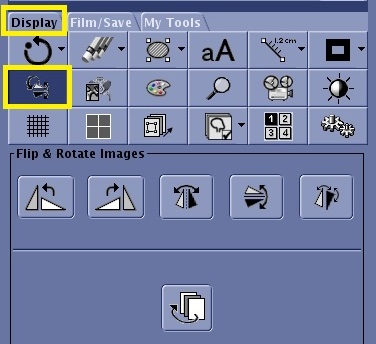
- In the Flip and Rotate Images area, click an icon that matches the desired action.
Figure 2. Flip/Rotate icons 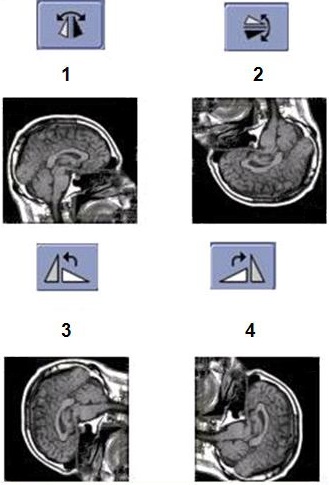
Table 1. Flip/rotate image legend Number Description 1 Flips left to right 2 Flips top to bottom 3 Rotates counter clockwise, left by 90° 4 Rotates clockwise, right by 90° - Click the Rotate/Flip icon (
 ) to flip the image left to right and top to bottom.
 - Click the Reset Image Orientation icon (
 ) to return the image to the orientation in which it was acquired.