About this task
Use this procedure to erase/hide objects when one or more graphic objects have been placed on any or all of the viewports.Step-by-step instructions
- Open the Viewer.
Result
A graphic object is displayed, for example, an annotated message, measurement, matte, ROI, etc.
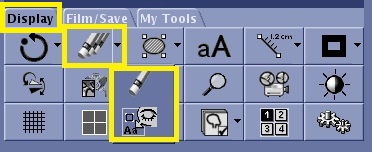
- From the Display tab, click the arrow next to the Erase/Hide icon to select the icon that matches the desired action.
Figure 1. Erase/Hide icon and menu on the Display tab
- Click the Hide All icon (
 ) to temporarily hide annotation or graphic objects.
 - Click the Show All icon (
 ) to restores the annotation or graphic objects so they are visible.
 - Click the Erase Single icon (
 ) to erase the currently selected graphic object. Use this erase option to remove one graphic element at a time.
 - Click the Erase All icon (
 ) to erase all graphic objects from all viewports.
- Keyboard shortcut: press Ctrl and X simultaneously to delete a selected graphic object.