Consider this information about the Measurement tools.
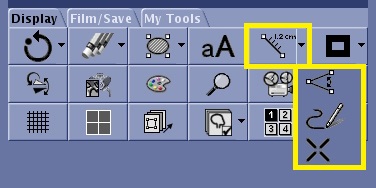
There are four measure tools: line, angle, free hand and report cursor.
Once you have selected the measure ROI, you can size, shape and move it.
The measurement statistics are displayed in the lower-right corner of an image. Up to three statistics can be displayed.
Yellow measurement lines indicate the measurement is active and that it can be moved, sized, and rotated. Blue measurement lines indicate that the measurement is inactive.
CAUTION
Post processing results may be affected by the presence of MR Conditional implants. Consider the following related to post-processing MAVRIC SL images on your MR, PACS, or AW systems: If an image includes susceptibility artifact, such as from MR Conditional metal implants, measurements made on the image may be incorrect due to distortion of actual physical locations.
About this task
Use these steps to activate a Measure tool to obtain information, distances, and areas of anatomy or pathology.
Step-by-step instructions
Open the Viewer.
Click the viewport in which you want to deposit a measurement.
From the Display tab, click the measure arrow and choose a Measure icon.
Figure 1. Measure icon and menu on the Display tab
The distance of the measurement is in mm.
The measurement displays in the lower-right corner.
Size, shape, and move the measurement.
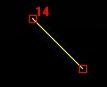
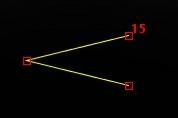
For a line or angle measurement:
Figure 2. Size, shape and move measurement
Click and drag the open ended boxes to shape the measurement.
Click and drag the line segment to move the measurement.
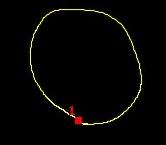
For a freehand trace measurement, place the cursor in the viewport and click to deposit the start point.
Figure 3. Freehand trace measurement
Click and drag the closed box to create the trace.
Click the edge of the trace to move the trace.
To propagate the measurement, follow these steps.
Click anywhere on the edge of a cyan (inactive) measurement to make it yellow and active.
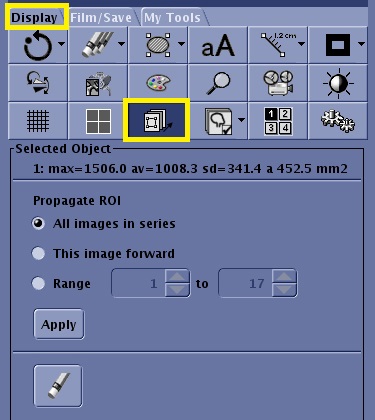
From the Display tab, click the Selected Object icon.
Figure 4. Selected Object icon and panel on the Display tab
From the Selected Object panel, make a propagation selection that populates the selected graphic to all or a range of images. Propagation also allows you to change W/L, pan, or zoom
Select All images in series to change all images within the series when one image changes.
Select This image forward to only change the images with a larger number within the series.
Select Range and specify a range of slices to propagate the measurements.
Click Apply.
To erase propagated objects, click the Erase Selected icon () from the Select Object screen area or from the erase/hide feature.
Use these steps to remove a measurement from an image.
Click anywhere on the edge of a cyan (inactive) measurement to make it yellow and active.
To delete an active measurement from a single image, do one of the following.
Press Delete.
From the Display tab, click the Erase Selected icon ().
To delete multiple measurements from an active viewport, from the Display tab, click the Erase All icon ().


 ) from the Select Object screen area or from the erase/hide feature.
 ).
).