

- 00000018WIA3036A870GYZ
- id_400216451.2
- Feb 28, 2022 1:58:28 PM
PROPELLER DW scan
DW PROPELLER for the brain, when used with Diffusion lobes and an FSE read-out, can minimize or eliminate distortions and SNR loss found with standard EPI acquisitions in high magnetic susceptibility areas such as base of skull, dental work, tissue boundaries, etc. Brain DWI also allows reconstruction of parametric maps as part of the prescription process, thus eliminating the need to post process the series in READY View . Although, if desired, a DW PROPELLER series can be post processed in READY View.
Use DW PROPELLER for high resolution head imaging where DWI is traditionally used. It is particularly useful in areas of high susceptibility relative to standard EPI methods. DW PROPELLER brain does not reduce motion artifact.
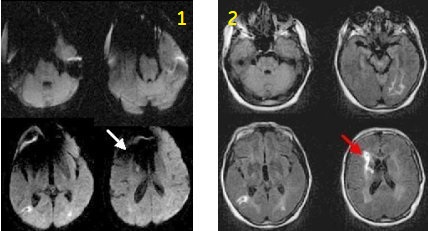
| Number | Description |
|---|---|
| 1 | EPI DWI |
| 2 | DW PROPELLER |
Consider this information when modifying DW PROPELLER scan parameters. For specific scan parameter values, select a protocol from your GE or Site library.
General
- It is recommended that you select a PROPELLER protocol from your site or GE library. If you choose to build one from a template, from the tab, select the desired PROPELLER series and modify the scan parameters.
- Only the T2 or b-value = 0 images are displayed in AutoView when scanning a DW PROPELLER brain series. The ADC, eADC, or Combined images must be viewed from the Viewer.
- MAGiC DWI (Synthetic DWI) scan procedure is not available with DW PROPELLER.
Scan Parameters
- b-value: Multiple b-value is not available with DW PROPELLER scans.
- NEX: NEX values are selected from the Diffusion Option Tab.
- TE: The TE value cannot be changed because it is determined by the frequency, ETL, and bandwidth values.
- TR: A 5000 TR minimizes T1 spin-lattice relaxation time effects and accommodates the number of slices.
DW PROPELLER with Imaging Options None selected
- Scan selections: 2D Mode, Fast Spin Echo family, DW PROPELLER pulse. This set of selections is often referred to as PROPELLER DWI Diffusion Preparation. It is the default mode for DW PROPELLER.
- Typically select an ETL of 20
Figure 2. DW PROPELLER with no Imaging Options selected 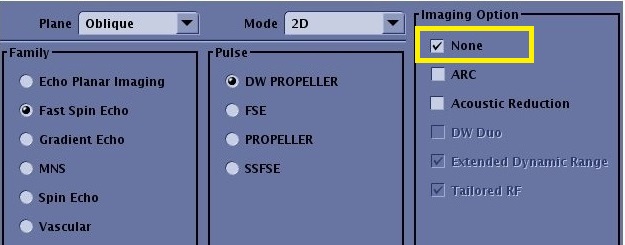
DW PROPELLER with DW Duo Imaging Option Duo selected
- Scan selections: 2D Mode, Fast Spin Echo family, DW PROPELLER pulse, DW Duo Imaging Option.
- DW Duo reduces scan time and significantly improves image quality in comparison with Diffusion Preparation scans (DW PROPELLER with None selected as Imaging Option)
- Typically select a ETL of 20.
Figure 3. DW PROPELLER with DW Duo Imaging Option selected 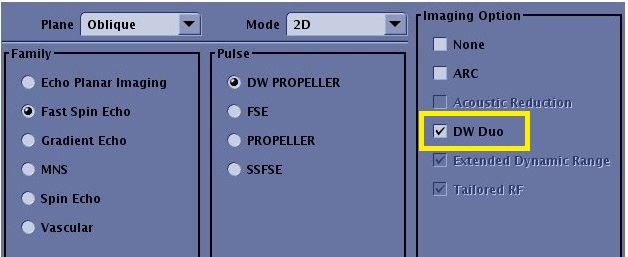
DW PROPELLER with ART selected (quiet scan)
- From the PSD/ Application/ Imaging Options screen make the following selections:
- Click Fast Spin Echo family, DW PROPELLER Pulse, Acoustic Reduction Imaging Option. Note that the scan time is slightly longer than a non-quiet DW PROPELLER scan.
- From the ART tab, make a selection to turn on Quiet: Moderate or High.
- ETL: Typically select an ETL of 20.
- Bandwidth: Typically select a Bandwidth of 35 kHz to reduce echo space and improve SNR.
- This option provides diffusion contrasts with low acoustic noise. It uses a gradient slew rate derating and waveform optimization to produce a quieter scan with a slightly longer scan time in comparison to other DW PROPELLER scans.
- ARTh is annotated on quiet Diffusion Preparation PROPELLER images.
- For details about PROPELLER Silent Scan, see Silent PROPELLER procedure.
Figure 4. PSD/ Application/ Imaging Options screen 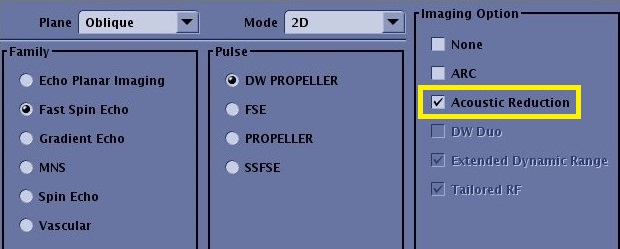
Figure 5. DW PROPELLER scan comparison 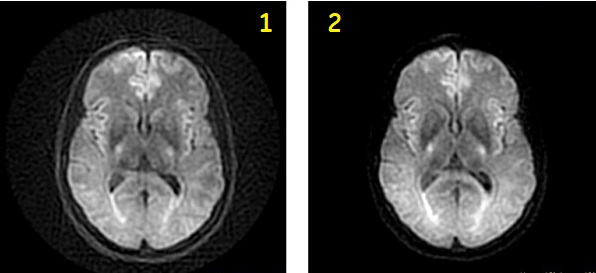
Table 2. Image legend Number Description 1 DW PROPELLER: - 128X128 matrix
2 DW Quiet PROPELLER: - Diffusion Preparation selected
- ARTMODE: High
- 128X128 matrix
User CVs
Click the Advance tab to view the available User CVs. The CVs may vary based on the field strength and selected scan and imaging parameters.
Post-process tasks
- There are multiple compatible post-process tasks. For details, see Add post-process task.
- The Diffusion Weighted Imaging (DWI: ADC; eADC) scan post-process task screen allows four selections.
- Threshold setting. For details see Threshold adjustment procedure.
- Confidence level setting. For details, see Confidence level step.
- Kernel size setting. For details, see Kernel size.
- Generation of ADC and eADC maps. For details, see Use these steps to generate parametric images from a Diffusion Weighted data set.
- EPI Correction function is not compatible with DW PROPELLER.
- For Pasting details, see Scan with Auto Paste.
- The AutoBind scan post-process task allows manual or auto.
- The Image Filter post-process task allows you to add a filter. For details, see Filter or Intensity Correction procedures.