

- 00000018WIA307A9870GYZ
- id_400219961.3
- Aug 12, 2022 5:57:50 PM
Erase image information
About this task
Important: All protocols exported should not have patient identifiable information on any images that are included in the protocol notes.
Step-by-step instructions
- Click and drag the image to activate it. It is active when the image has a blue outline.
Figure 1. Image with a blue outline 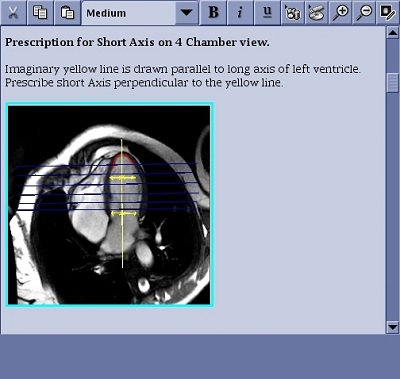
- From the Protocol Note tool bar, click the
 .
. - Select a color from the color pull-down menu. The selected color is displayed in the selection field.
Figure 2. Color menu 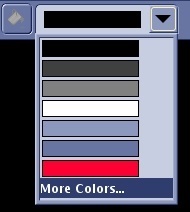
- The menu only displays a set number of colors. If you prefer a color not displayed in the menu, click More Colors... Select a new color from the Colors window and click OK. The new color is added to the color pull-down menu.
Figure 3. Colors window 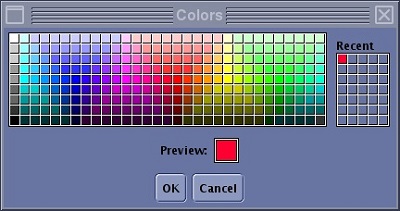
- The menu only displays a set number of colors. If you prefer a color not displayed in the menu, click More Colors... Select a new color from the Colors window and click OK. The new color is added to the color pull-down menu.
- Click the
 and the selected color paints the content in the selection box.