

- 00000018WIA30BCB770GYZ
- id_400258671.3
- Feb 14, 2022 11:22:34 AM
Scan Auto Voice
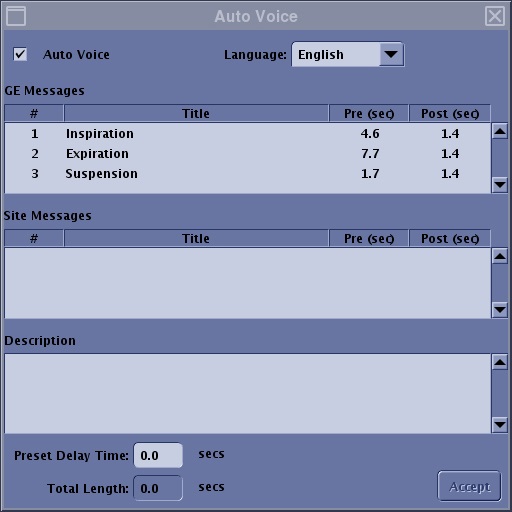
Auto Voice provides breath-hold instructions to the patient, in the patient's native language, during scanning. From the Scan Parameters screen menu bar to, click the  icon to view the Auto Voice screen.
| Parameter | Description |
|---|---|
| Auto Voice check box | The Auto Voice selection activates the Auto Voice selection fields and turns Auto Voice on. |
| Language menu | The Language menu lists the available languages. |
| GE Messages area | The GE Messages area lists the messages provided by your system. These messages cannot be modified or deleted. |
| Site Messages area | The Site Messages area lists the messages customized by your site. |
| Description area | The Description field displays a description of the selected site message. The site message is entered from the Auto Voice Management Tool. |
| Preset Delay Time text field | The Preset Delay Time text box allows you to add time to the breath hold instructions time frame. For example, if you determine the current patient needs more time to reach an inspiration or expiration state before the scan starts, then add time in seconds. |
| Total Length Time display | The Total Length Time display updates and is the sum of the time it takes to deliver the Pre (typically inspiration) and Post (typically expiration) messages. If you have a multi-phase acquisition, verify that the Total Length Time does not exceed your inter-phase time. |
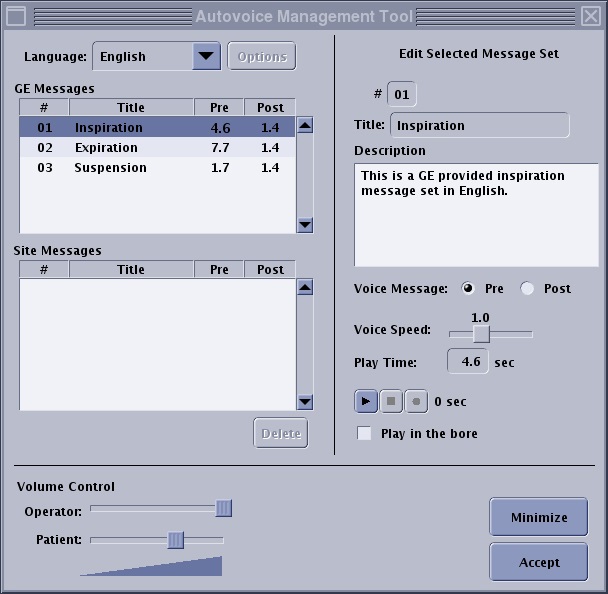
You can create new or modify existing Auto Voice messages using the intercom microphone on the operator console and the Autovoice Management Tool screen.
From the header area of the screen, click the  , then Preferences to open the System Preferences screen. From the Preferences screen, click Auto Voice... to open the Autovoice Management Tool screen.
| Parameter | Description |
|---|---|
| Language selection area | Allows selection of the language in which you are going to record the message. You can add or delete languages on the list. The Options button opens a screen that displays the currently registered languages list. The Mark as default button is used to set the selected language as the default language. |
| GE Messages area | Displays a list of inspiration, expiration, and suspension messages that are loaded onto your system. These messages cannot be edited. New language messages that are added can be edited. It is highly recommended that you add inspiration, expiration, and suspension messages in the new language to facilitate switching between messages during scan prescription. |
| Site Messages area | Displays a list of the messages that are recorded from your site. |
| Volume Control area | The volume control sliders control the volume at the console or the bore. |
| Recording Controls area | The record controls are only available if an exam is not open. The buttons allow you to control a recorded message. |