- 00000018WIA3048D770GYZ
- id_400266491.3
- Apr 13, 2022 3:25:54 AM
Scan AutoView
About this task
Once images are out of the AutoView buffer, they can be viewed from the Viewer. When images from series one of the current examination reconstruct, images from the previous examination are deleted from the AutoView buffer.
There are times within an exam, when the size limit of the AutoView buffer is reached resulting in no image displayed when the AutoView scroll bar is moved. View the images in the Viewer when this condition occurs.
| Parameter | Description |
|---|---|
| Header area
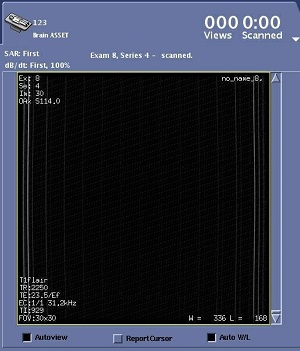
The Autoview header area displays the following information regarding the series that is currently being downloaded and scanned: | |
|
| Prescan messages such as "tuning transmit gain..."
|
| Image Display area
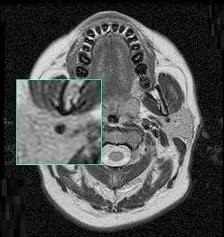
| Displays images as they are reconstructed. You can place the cursor in the viewport, right-click and drag the mouse to activate and move the magnifying glass. |
| Image selection slider
| Use the AutoView slider, to the right of the image, for moving within the image set. For details, see Slider procedure. |
| Autoview check box
| When AutoView checkbox is on the system automatically displays each image as it is reconstructed for the current examination. The images are displayed in the order of the reconstruction. When using the slider, the images are viewed in order of series, image, and echo number. In addition, the image viewed has its image number noted to the left of the slider. When AutoView checkbox is off the system is in Review mode. The Review mode allows you to scroll through the images in AutoView display. When you turn AutoView back on, Review mode is turned off and the most recently reconstructed images are displayed. |
| Report cursor checkbox
| Report Cursor displays a cursor on the AutoView image. As the cursor is moved on the image the RAS coordinates update real time. 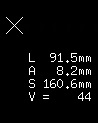 |
| Auto W/L checkbox
| When Auto W/L checkbox is selected it applies the Window/Level that was calculated during reconstruction. |
| Update | Update allows you to add images to the AutoView memory if images have reconstructed while AutoView was turned off. Use the slider to review these images. |