Use these steps to turn on, modify or turn off auto carry forward.
Auto carry forward automatically includes information on the amount of contrast and kind of contrast agent in one scan series to another series.
Step-by-step instructions
To turn Auto Carry Forward Contrast ON, download a series with contrast and complete the scan.
If the series to which you wish to apply contrast information is in the NEW or RXD state, contrast amount and agent will be carried forward from the downloaded series.
If you add a series (new series, load a protocol, copy and paste series on Rx Manager List), the added series automatically has the contrast amount and agent of the previous series added.
To modify Auto Carry Forward information, follow these steps:
Select a series whose contrast information has carried forward to subsequent series.
Modify the contrast values and select Save Rx.
The contrast information in the subsequent series will also be modified those series are in the NEW, RXD or INRX state.
For example, for series 3, modify the contrast type and amount to CC and 33. Click Save Series and series 4 and 5 will have the new contrast type and amount and not the originally entered contrast type and amount.
Table 1. Auto Carry forward example
Rx#
Rx state
Contrast before adding
Contrast after adding
1.
SCND
OFF
OFF
2.
ACT
ON (AA, 11)
ON (AA, 11)
3.
RXD
ON (AA, 11)
ON (CC, 33)
4.
INRX
OFF
ON (CC, 33)
5.
NEW
ON (BB, 22)
ON (CC, 33)
To turn Auto Carry Forward off, follow these steps:
Select a series whose contrast information has carried forward to subsequent series.
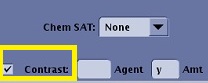
Deselect the Contrast option button on the Scan Parameter screen.
Figure 1. Contrast option button
Click Save Rx.
The contrast status of the remaining series is turned off automatically if they are NEW or RXD state.
For example, Contrast option box is turned off for series 3 resulting in series 4 and 5 also having contrast turned off.