- 00000018WIA30919870GYZ
- id_400247631.2
- Feb 7, 2022 2:16:11 PM
Control volume
About this task
Step-by-step instructions
- From the Tools menu, select Preferences to open the System Preferences screen.
Figure 1. Tools menu 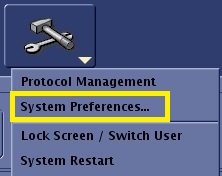
- From the System Preferences screen, click Auto Voice... to open the Autovoice Management Tool screen.
Figure 2. Top area of System Preferences screen 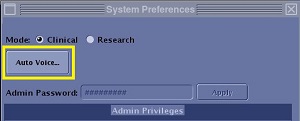
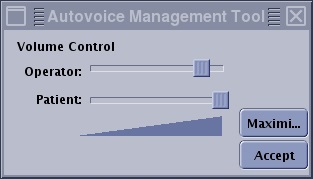
- From the Autovoice Management Tool screen, adjust the volume controls as needed.
Figure 3. Autovoice volume controls area 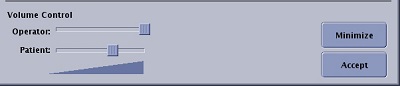
- Move the Operator slider to control the message volume at the console.
- Move the Patient slider to control the message volume in the bore.
- Click Minimize to change the Autovoice Management screen to a smaller window that only displays the volume controls. This window can be moved to any location on the monitor. This allows you to have access to the controls while scanning.
Figure 4. Minimized Auto Voice controls window