Use these steps to check the status of the Imaging Protocol Manager application.
Step-by-step instructions
Open the Service browser.
From the Configuration tab of the Service browser, click Imaging Protocol Manager (IPM).
From the Imaging Protocol Manager (IPM) screen, click the Diagnostics tab.
Result
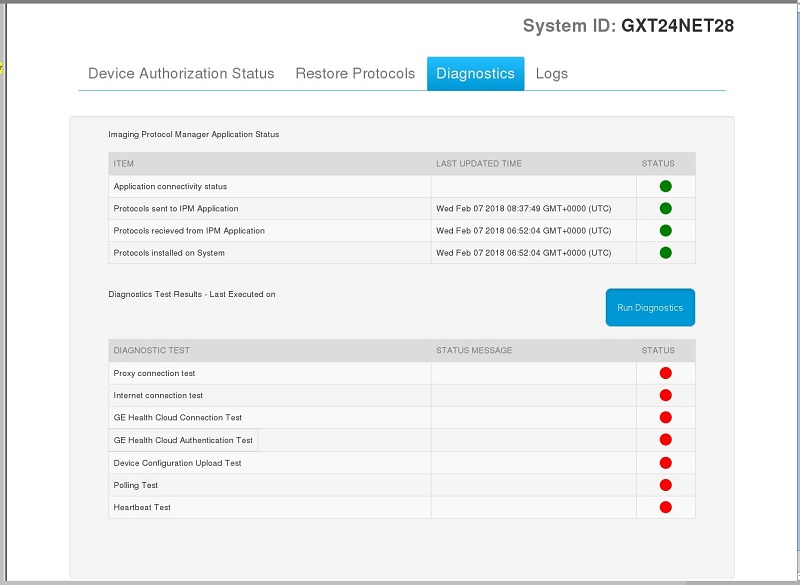
The screen displays the application connectivity status and the status of protocols sent, received, committed, and the last updated time. Figure 1. Diagnostics tab
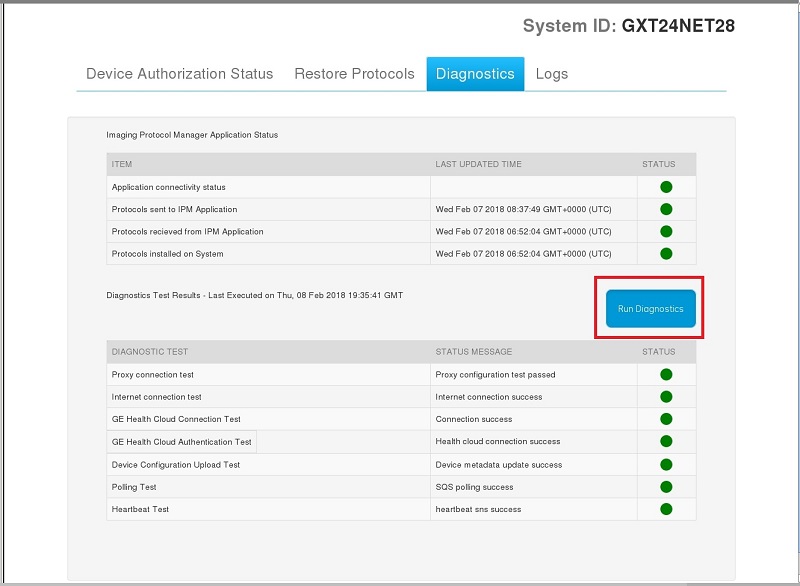
Click Run Diagnostics to start the predefined tests.
Figure 2. Diagnostics tab and Run Diagnostics button
Result
The status of each completed test is displayed with a green dot (successful test) or a red dot (unsuccessful test). An open dot next to the test means that the test has not been completed yet.