

- 00000018WIA3016F770GYZ
- id_400225651.3
- Mar 22, 2022 3:29:33 PM
Deposit a 3D ROI
About this task
| Box ROI | Elliptical ROI | Trace ROI |
|---|---|---|
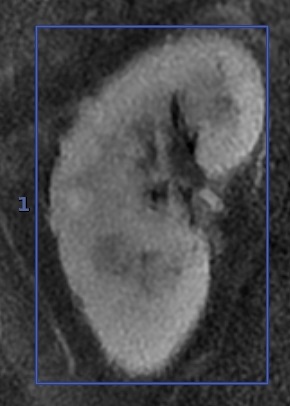 | 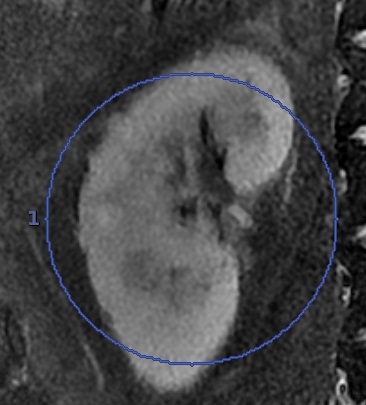 | 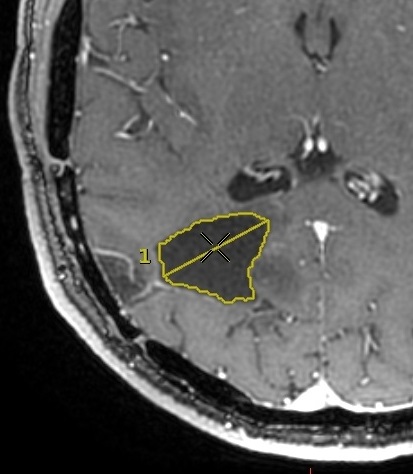 |
| 3D Box and Sphere ROI statistics
Auto Contour statistics
| ||


Step-by-step instructions
- From the Measure/Annotate Toolbar, click one of the 3D ROI cursors.
- From any viewport that displays the 3D cursor, from the Review Controller, click and drag the
 .
.- As you move through the data set, note that the red cursor is synchronized with the movement of the Image Scroll icon.
Figure 1. Red cursor in Review controller 
- As you move through the data set, note that the red cursor is synchronized with the movement of the Image Scroll icon.


