

- 00000018WIA3050F770GYZ
- id_400253541.3
- May 23, 2022 4:16:22 AM
Open MR General Review (Volume Viewer)
About this task
There are two locations from which you can open the MR General Review: the Session Apps list or the Workflow Manager.
Step-by-step instructions
- To open the MR General Review from the Session Apps list, follow these steps.
- Click the
 to open the Image Management work area.
 - From the Patient List area, select an exam. .
Figure 1. Example of an exam selected from the Patient list 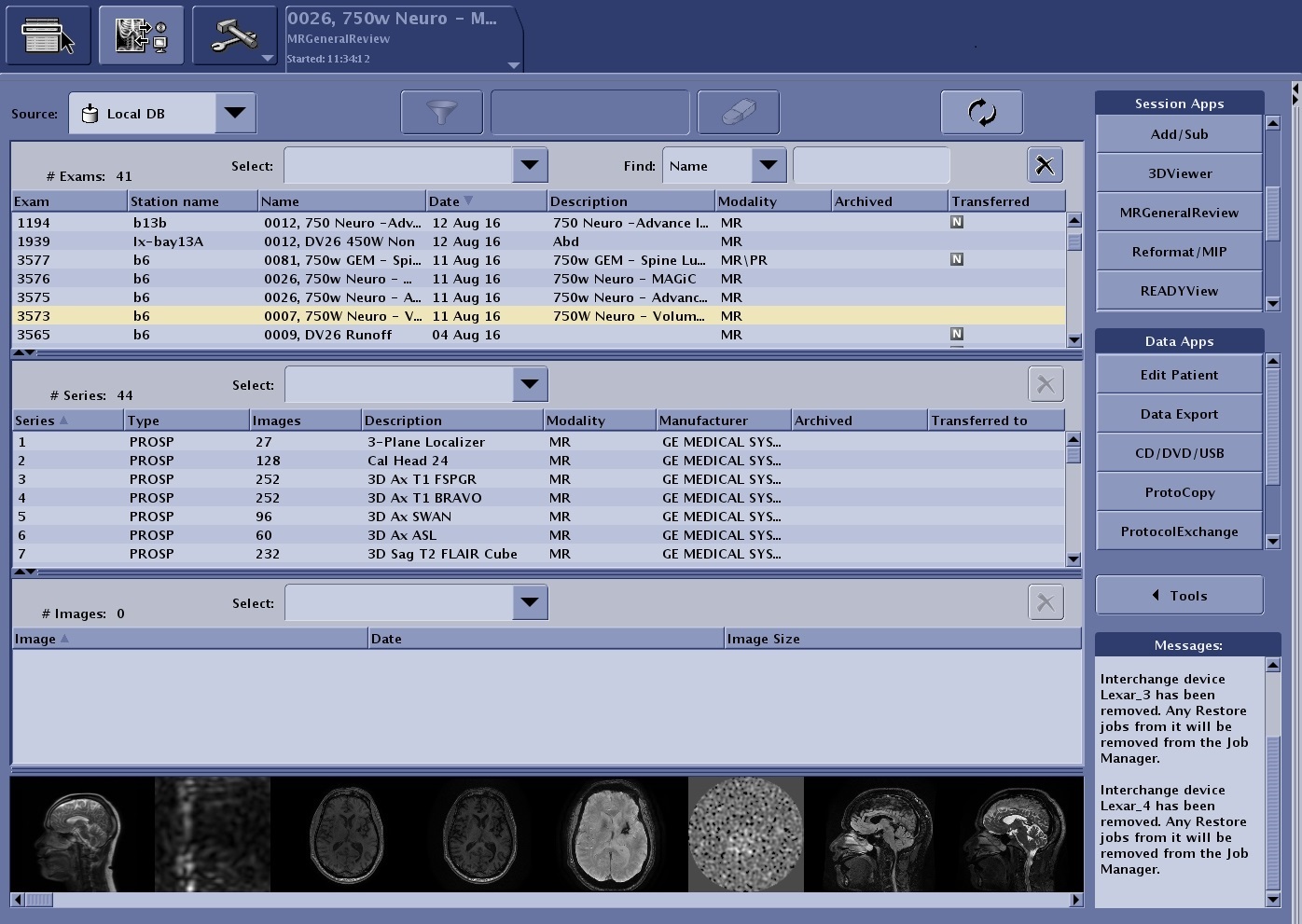
- From the series list select a single or multiple series.
- From the Session Apps list, click 3DViewer, Reformat/MIP, READY View or MR General Review. All of these selections launch the Volume Viewer application.
Figure 2. Session Apps list 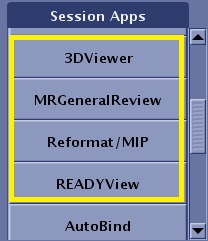
- MultiPlanar (MPR) is the same as selecting Reformat. Note that you can select the
 from the Visualization toolbar to quickly view a data set as a 3D or reformat model.
 - A MIP is the same as selecting 3D.
- MultiPlanar (MPR) is the same as selecting Reformat. Note that you can select the
- From the loading panel, select the series you wish to load and click OK.
Figure 3. Example of an exam with multiple series selected 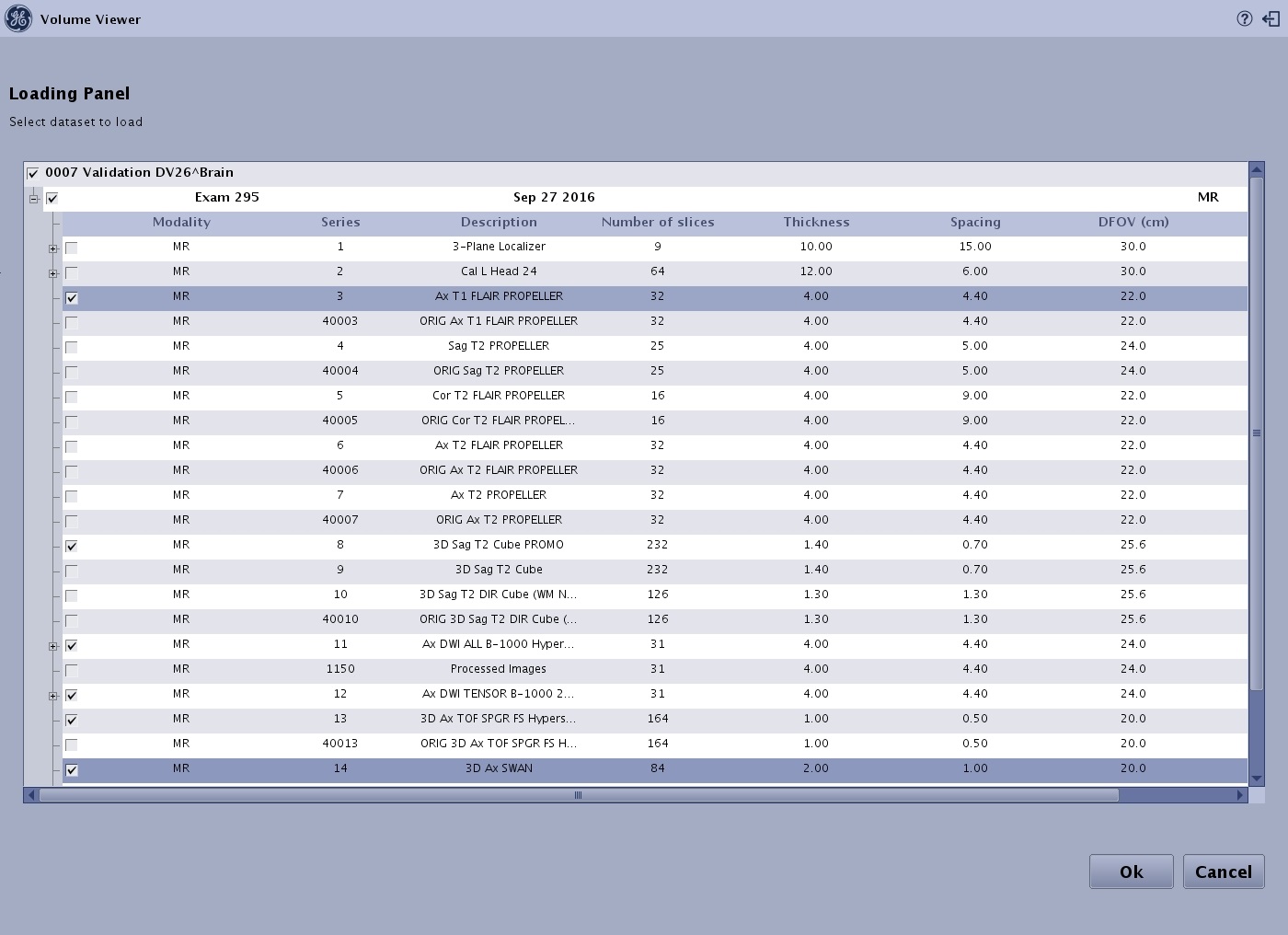
- The application launches with a format based on the number of series selected from the Loading Panel. Each viewport has an image from the selected series.
Figure 4. Example of 8 series selected from the Loading panel 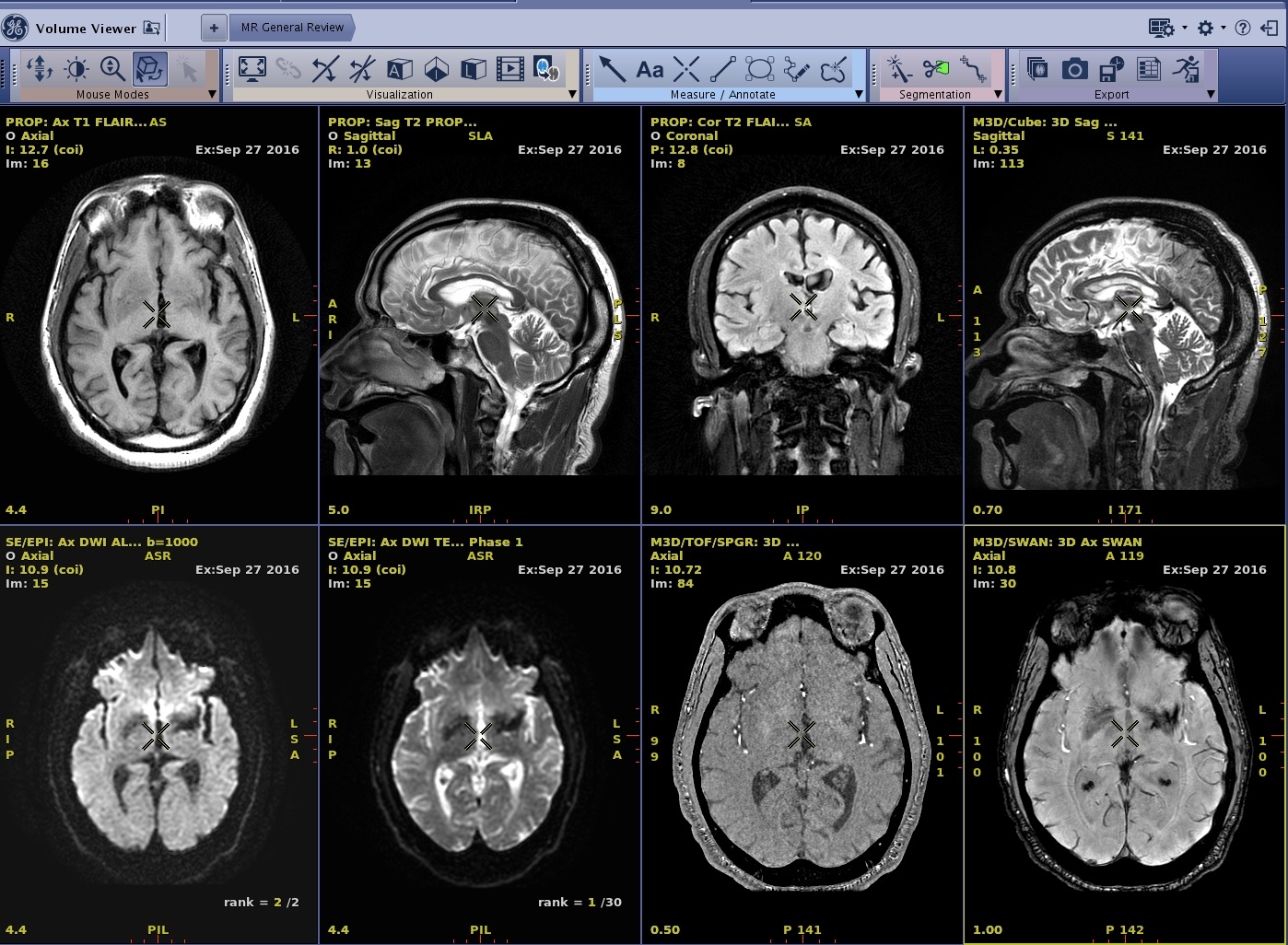
- Click the