

- 00000018WIA3063F770GYZ
- id_400269531.2
- Mar 9, 2022 12:01:10 PM
Right-click menus
Place the mouse over a viewport and right-click to display the on-view menu. Move the cursor down the menu until your choice is highlighted. Release the mouse button.
Not all choices are available under all conditions. The menu differs based on the type of viewport.
Keyboard shortcuts are displayed next to the menu item, when available.
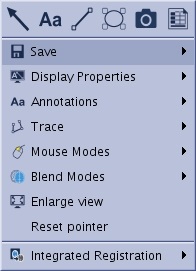
Save
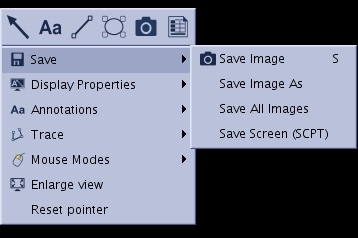
- Save Image: Saves the image to the local database.
- Keyboard shortcut = S.
- Save Image As: Saves the images to the local database and requests a series name.
- Keyboard shortcut = As.
- Save All Images: Saves all viewports displayed on the screen to the local database.
- Save Screen (SCPT): Saves entire screen as a Screen Save image.
Display Properties
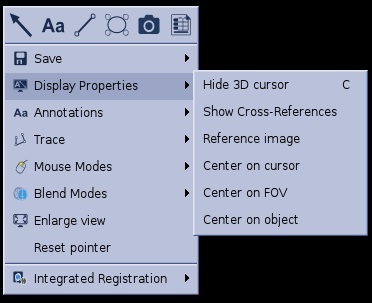
- Hide 3D cursor: Removes the 3D cursor from the screen. Toggles back with Show 3D cursor.
- Keyboard shortcut = C.
- Show Cross-References: To display current plane on other series viewports from same exam. Select (Show all planes) or (Show only current plane).
- Reference Image: To display a small reference image showing the plane orientation and position of the current image.
- Center on Cursor: To center the image on the cursor.
- Center on FOV: To center the image on the FOV.
- Center on Object: To center the image on an object (very useful after segmentation).
Annotation
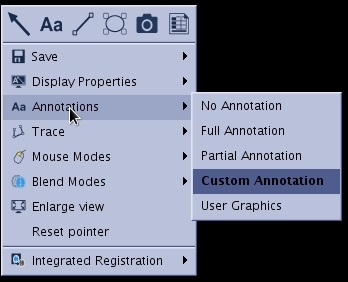
- No Annotation: Hides all annotations including the right and left markers.
- Partial Annotation: Hides or shows part of the image annotations (scan parameters).
- Full Annotation: When full annotation is not shown, an option to select full annotations appears.
- Custom Annotation: Shows the annotations that have been checked in the Annotation tab of the Display options Panel.
- User Graphics: Shows only user graphics including measurements and annotations.
Trace
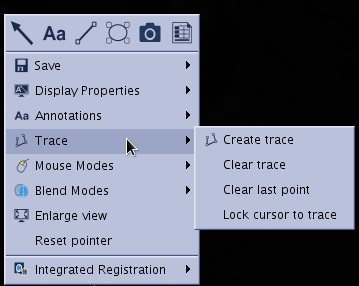
- Create trace: Turns the cursor into a hand and allows you to click and trace while pressing the Shift arrow up key.
- Clear trace: Deletes all points.
- Clear last point: Deletes the last point deposited.
- Lock cursor to trace: Locks the 3D cursor on the trace. Press and hold the Shift key to move the 3D cursor along the trace on all views.
Mouse modes
Sets the action of the left mouse button. The active mode is highlighted.
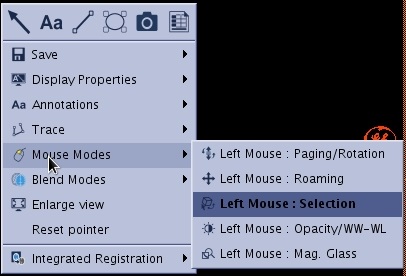
- Left Mouse Paging/Rotation: Changes the left mouse to behave as a Page or Rotation mode.
- Left Mouse Roaming: Changes the left mouse to behave as Roam mode.
- Left Mouse Selection: Changes the left mouse to behave as a Selection mode.
- Left Mouse Opacity/WW-WL: Changes the left mouse to behave as controller of W/L or opacity.
- Left Mouse Mag Glass: Changes the left mouse to behave as Magnification Glass.
Blend modes
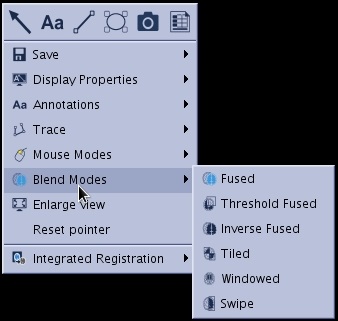
- Fused: Fuses two images
Figure 8. Example of a fused images 
- Threshold Fused: Fuses images based on the set threshold.
Figure 9. Example of a fused images 
- Inverse Fused: Inverts the image's gray scale
Figure 10. Example of a fused images 
- Tiled:
Figure 11. Example of a fused images 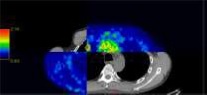
- Windowed:
Figure 12. Example of a fused images 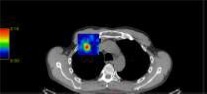
- Swipe:
Figure 13. Example of a fused images 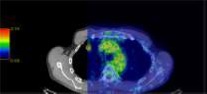
Enlarge view
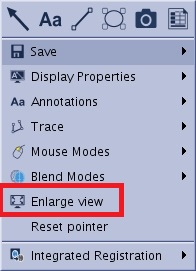
- Enlarge/Reset Size: Enlarges the active viewport to a full screen. Right-click again and click Reset Size to return the previous viewport configuration.
Reset pointer
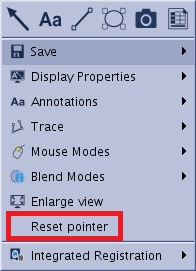
- Reset Pointer: Positions the 3D cursor back to the center of the volume. Use this tool when you have blank viewports.
Save/Restore Volume on a 3D View
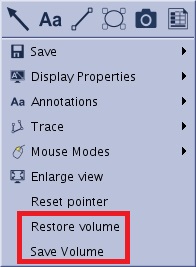
- Save Volume: Saves a segmented volume and stores it in a temporary clipboard that is accessible via the Save/Recall tool from Export tools.
- Restore Volume: Displays the initial volume (before segmentation).
Convert to ROI
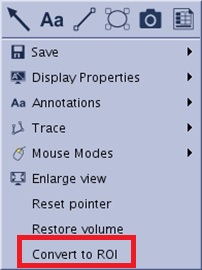
- Convert to ROI: Converts the segmented volume into a 3D ROI.
Integrated Registration
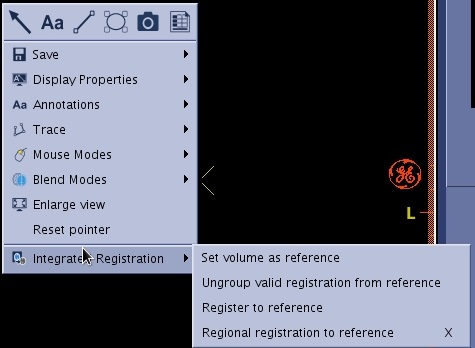
- Set volume as reference: It is available on views that display a single volume that is different from the current Reference volume. Selecting this menu item will set the volume displayed in that view as the reference series for registration.
- Ungroup valid registration from reference: It is available on views that display a single volume other than the Reference volume itself from the Reference volume’s group. Select this menu item to ungroup this volume from the group of the Reference series. If the selected volume has the same FOR as that of the Reference, only this volume is ungrouped. If the selected volume’s FOR is different from that of the Reference volume, all the volumes from this group that have the same FOR as that of the selected volume are ungrouped from the Reference series. If more than one volume is ungrouped, the ungrouped volumes are regrouped together into a separate group.
- Ungroup valid registration: It is available on fused views that display volumes from the same group. Select this menu item to ungroup the mixed volume (i.e., the overlay) from the initial group. All the volumes from this group – except the reference volume (i.e., the underlay) of the fused view – that have the same FOR as that of the current volume are ungrouped from the Reference series. If more than one volume is ungrouped, the ungrouped volumes are regrouped together into a separate group.
- Register to reference: It is available on views that display a single volume different from the Reference volume. Select this menu item to launch the automatic registration between the series displayed in the current view and the Reference series. If the Registered series belongs to the same group as the Reference one then it is ungrouped. The registration result is propagated to all the series that are in same group with the series that was registered to the Reference volume.
- Register: It is available on fused views. Selecting this menu item first, the Reference and Registered volumes are set according to the rules described at point 1 in Manual Registration and then will register the Registered volume to the Reference volume. If the Registered series belongs to the same group as the Reference one then it is ungrouped. The registration result is propagated to all the series that are in same group with the Registered series.
- Regional registration: It is available on fused views. Selecting this menu item first, the Reference and Registered volumes are set according to the rules described at point 1 in Manual Registration and then will launch the regional registration at cursor between the Reference and Registered volumes with the predefined ROI value set in User Preferences. If the Registered series belongs to the same group as the Reference one then it is ungrouped. The registration result is propagated to all series that are in same group with the Registered series.
- Keyboard shortcut = X.
- Validate & group: It is available on fused views. Select this menu item to validate the registration and group all volumes of the Registered volumes’ group with the Reference volume’s group. Note that when this menu item is selected on a fused view, first the Reference and Registered volumes are set according to the rules described at point 1 in Manual Registration.
Color Scale Settings
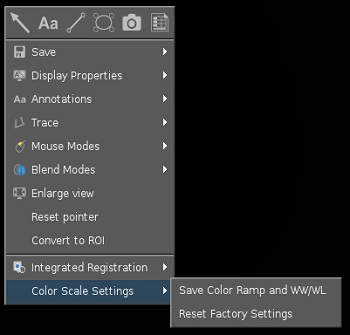
- Save Color Ramp and WW/WL: Saves the settings for Color Ramp and WW/WL.
- Reset Factory Settings: Resets the Color Ramp and WW/WL to the factory settings.
Reference image
The Reference Image right-click menu varies based on the viewport.
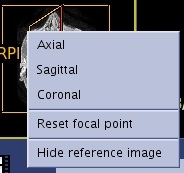
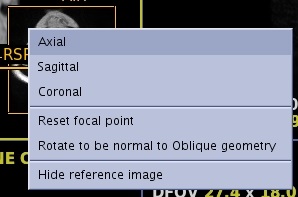
- Axial, Sagittal or Coronal: Allows you to select a new plane.
- Reset focal point: Switches the baseline image used for the reference image to the one that matches the current 3D cursor location.
- Hide reference image: Hides the reference image from the viewport.
- Rotate to be normal to Oblique geometry rotates the reference image to normal position.