Use report cursor to view anatomical location and signal intensity based on the cursor location.
Step-by-step instructions
Open the MR General Review.
From the Measure/Annotate Toolbar, click the Report Cursor icon ().
Place the cursor over the desired location and click to deposit.
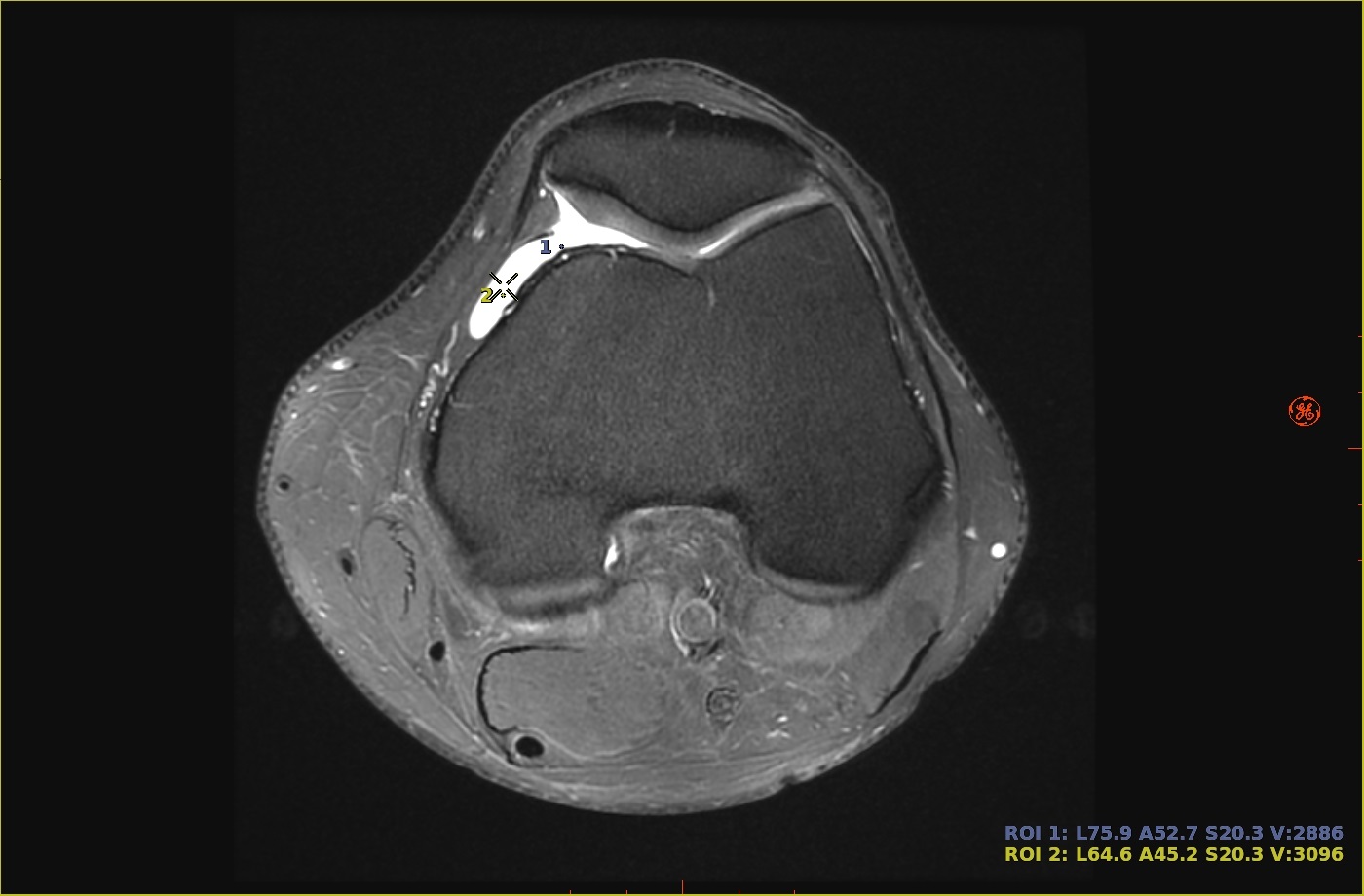
Report cursor locations are indicated by a small plus sign (+).
Click and drag to move an active cursor. As you move the cursor, the numbers are updated.
The cursor anatomical location and signal intensity are displayed and connected to the location via a dotted line only if Float Stats attached to ROI is selected from the Preferences screen.
Anatomic location is annotated as anterior/posterior, superior/inferior/left/right.
Signal intensity is annotated as V = xxx.
To remove, duplicate the ROI, or hide/show the statistics, see Modify measurements.


 ).
).