Tools preferences: select ROI and measurement parameters
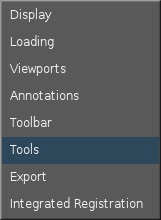
To view the Tools Preferences screen, from the MR General Review work area, click the in the upper right corner. From the Preferences menu, click Tools.
Figure 1. Preferences menu
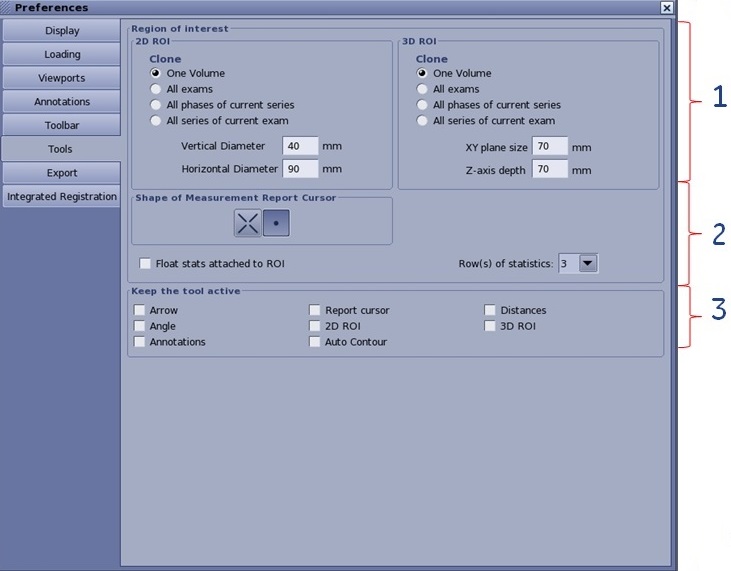
Figure 2. Tools Preferences screen
Table 1. Image legend
Number
Description/Procedure
1
Region of interest
Select the Auto-clone level for 2D and 3D ROIs.
Enter values for the default size of the 2D ROI and 3D ROI in the associated text boxes.
2
Shape of Measurement Report Cursor
Select one of the options as the default shape of the Report Cursor.
Select the Float stats attached to ROI option box to float the graphic statistics next to the graphic object on the viewport. If it is de-selected, the statistics appear in the lower right corner of the viewport.
Select a value for the Row(s) of statistics (1-3).
3
Keep the tool active
Click each graphic option box to keep the tool active.
If the option is selected, it means that the tool is still active after it has been deposited (the mouse mode is still in deposit mode) until you select another tool or another mouse mode or close the tool.
If the option is de-selected, it means that the tool is not active after it has been deposited. To deposit the same type of measurement again, you must select the tool again.


 in the upper right corner. From the Preferences menu, click Tools.