- 00000018WIA3077D770GYZ
- id_400256291.5
- Aug 17, 2022 12:51:53 PM
Annotation
About this task
Feature uses include:
- To capture graphic prescription locations for protocol notes that have no patient identification information
Step-by-step instructions
- From the Graphic Rx toolbar, click the
 .
. - From the Graphic Rx Tools menu, click one of the following:
- Click Hide Annotation option box.
- Image annotation on all three viewports is removed except for tilt angle (oblique images only), and window width and level.
Figure 1. Graphic Rx image annotation removed 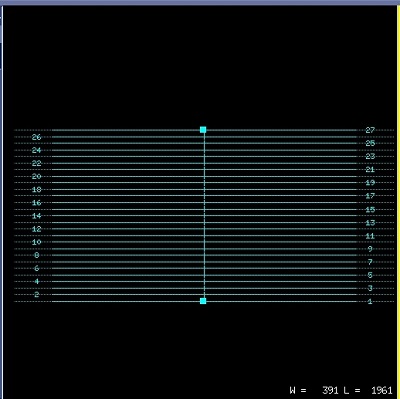
- Image annotation on all three viewports is removed except for tilt angle (oblique images only), and window width and level.
- From the Graphic Rx Tools menu, click the Show Annotation option again, to turn on the following sub-set of image annotation.
Result
Image annotation on all three viewports is removed except for:- exam, series image, scan location
- patient name, sex, age, identification number
- tilt angle (oblique images only)
- window width and level
Figure 2. Graphic Rx image sub-set of annotation 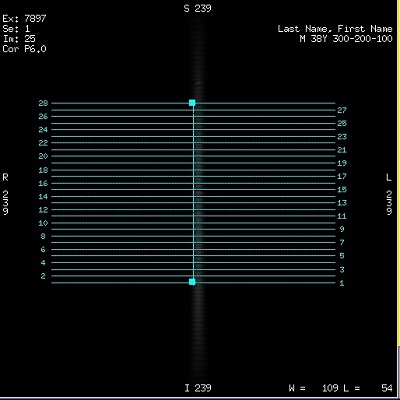
- Click Hide Annotation option box.
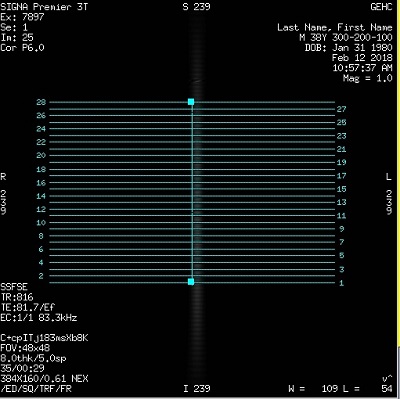
- From the Graphic Rx Tools menu, click Full Annotation check box to see all image annotation in all Graphic Rx viewports.
Figure 3. Example of Graphic Rx image full annotation