

- 00000018WIA3086D770GYZ
- id_400219801.7
- Aug 17, 2022 12:15:41 PM
Graphic Rx Tools menu
Use the Tools menu on the Graphic Rx Toolbar to apply additional tools for image display in Graphic Rx. It is not available for a localizer scan or the first acquisition of the exam. Note that the options that display are related to the currently displayed localizer images and thus not all options are displayed at all times.
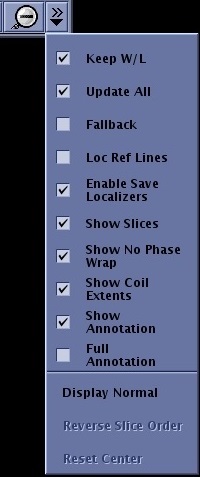
| Graphic Rx tool | Description |
|---|---|
| Keep W/L | Keeps the selected W/L for the active viewport. |
| Update All | When Update All is selected, zoom, pan, and W/L applied to one viewport automatically is applied to all viewports. |
| Fallback | Fallback moves the slice centers from their graphically prescribed position to isocenter, along the localizer slice-select direction. |
| Loc Ref Lines | Allows you to view the reference lines on all viewports. |
| Enable Save Localizer | Allows automatic saving of the Graphic Rx lines that appear in all three viewports. |
| Show Slices | Toggles the slices within the 2D scan range on/off. |
| Show No Phase Wrap | Toggles the size of the No Phase Wrap FOV field on/off. |
| Show Coil Extents | Toggles the coil extent lines on/off. |
| Show Annotation | Toggles a sub-set of image annotation on/off. |
| Full Annotation | Toggles all image annotation on/off. |
| Display Normal | Returns the displayed images to their default size and location. In other words, it removes the pan and zoom factors. |
| Reverse Slices | Allows reversing start and end location order for a 2D or 3D single/multi slab Graphic Rx prescription. |
| Reset Center | Allows you to page through a data set and re-select a new center image for prescription. |