

- 00000018WIA30585970GYZ
- id_400218381.3
- May 23, 2022 3:33:46 AM
Adjust the Voxel shift
About this task
Use these steps to move the spectroscopy grid so that a CSI voxel is positioned over an area of interest (e.g., over pathology). Voxel shifting allows you to adjust the position of the encoded voxels (determined by the CSI Grid) relative to the anatomy. This procedure can also be used to move the grid so the CSI voxel of interest is not a partial volume; that is, align the grid with the posterior edge of the PROSE voxel.
Important: For oblique (or non-oblique) spectroscopy acquisitions, the grid offset location is displayed at the bottom of the upper-left viewport.
Step-by-step instructions
- From the spectroscopy Review Steps, click Metabolites.
Figure 1. Metabolites Review Step 
- If the Voxel Shifting tab does not automatically display, click the
 and then the Voxel Shifting tab.
 - From the Voxel Shifting tab, click the
 to turn it on.
 - Use the
 to move the grid in the direction the arrow is pointing to an area of interest.
Figure 2. The new grid and the old grid are both visible 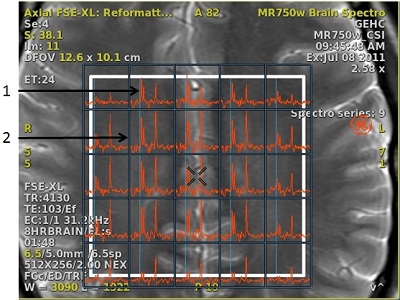
Table 1. Image legend Number Description 1 New grid 2 Existing grid