- 00000018WIA30D8EE80GYZ
- id_20373701.2
- Jun 22, 2022 7:57:15 PM
2D ROI: deposit on a spectroscopy image
READY View computes a metabolite’s values using two different methods that may lead to differences when the values are displayed in the graph view or in the viewport.
About this task
Use these steps to deposit a 2D ROI on a spectroscopy image and view the corresponding spectrum.
Step-by-step instructions
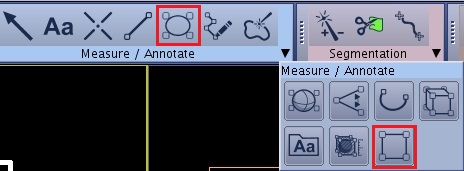
- Click the center dot of the ROI to move the ROI within the voxels and observe the corresponding graph changes.
- The graph curve represents the weighted average of the voxels in proportion of the percentage of their area that is within the ROI boundary.
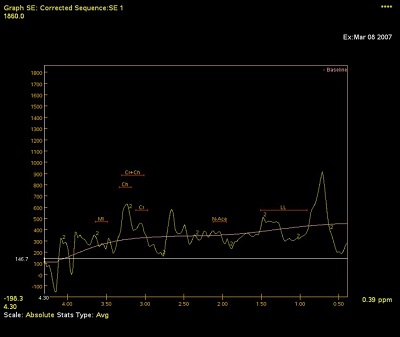
Table 1. 2D ROI positioned on spectroscopy image 2D ROI position Corresponding graph Figure 2. 2D ROI positioned at the top of the selected spectroscopy voxels 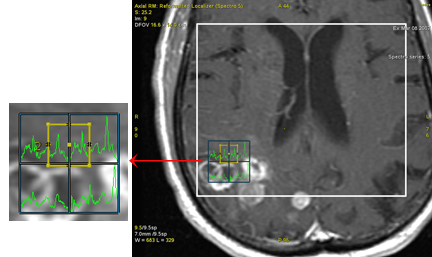
Figure 3. Corresponding spectrum 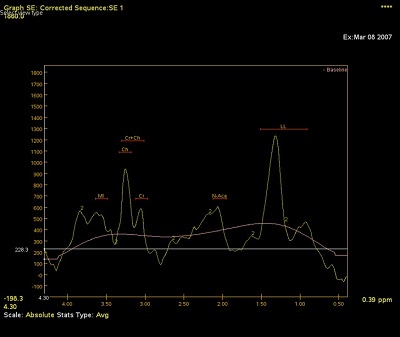
Figure 4. 2D ROI positioned at the bottom of the selected spectroscopy voxels 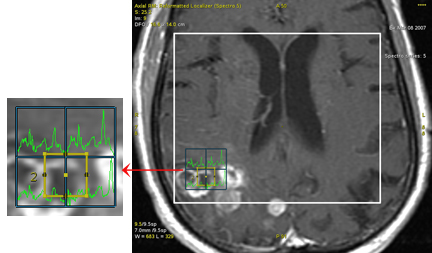
Figure 5. Corresponding spectrum