
• Object ID: 00000018WIA3011A870GYZ
  • Topic ID: id_40021830 Version: 1.3
  • Date: Apr 20, 2022 9:43:02 PM

Add text

About this task

Use these steps to add a text note related to the series that is currently in a setup state (INRX).

Step-by-step instructions

  1. Click the Protocol Notes tab in the lower-right corner of the monitor.
  2. Place the cursor in the large text field and type the desired text.
    The cursor must be in the Protocol Notes text field to be active and allow you to enter text.
  3. To change the text characteristics from normal to bold, italics, or underscore or to change the font size from medium to small, very small, large, or very large, select the text you want to change and click the desired text character keys.
    Figure 1. Font icons
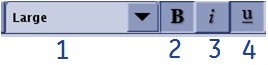
    Table 1. Image legend
    NumberDescription
    1Font size menu selection
    2Bold
    3Italic
    4Underline

    Once you change the font, the succeeding characters will have the new size and style.

  4. When you are finished adding text, click Save as Protocol from the Exam menu on the Workflow Manager menu bar or from the Scan Session menu.

    Result

    Your updates are saved with the protocol.