

- 00000018WIA3000A870GYZ
- id_400217131.2
- Feb 8, 2022 2:12:55 PM
Register the scanner
About this task
Once registration is completed and the device is connected, you are able to send (PULL) protocols to the Cloud, where they are standardized. The scanner is then able to receive (PUSH) protocols from the Cloud.
Step-by-step instructions
- From the Configuration tab of the Service browser, click Imaging Protocol Manager (IPM).
- If the Login tab with Get Connected displays, contact your service engineer for registration.
Figure 1. Unsuccessfully connected screen 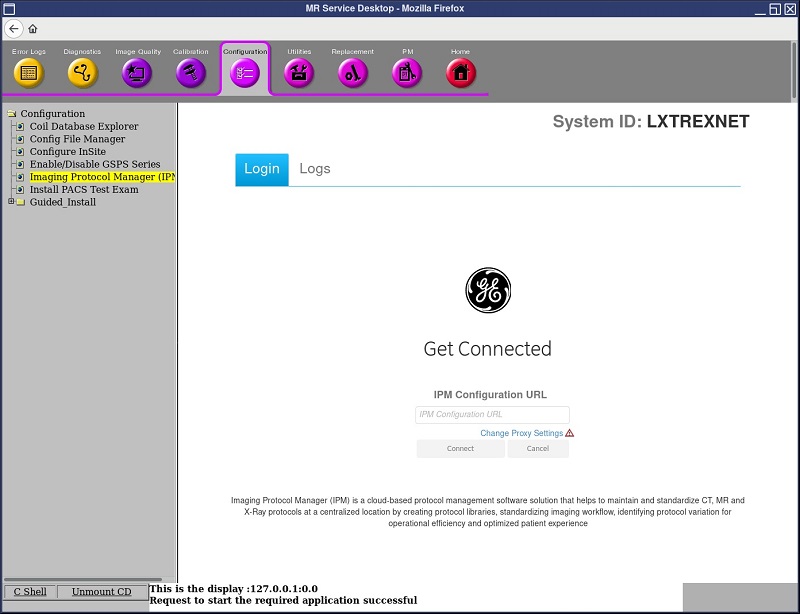
- If the Device Authorization Status tab displays, it indicates that the device is currently connected.
Figure 2. Service browser: Device Authorization Status tab 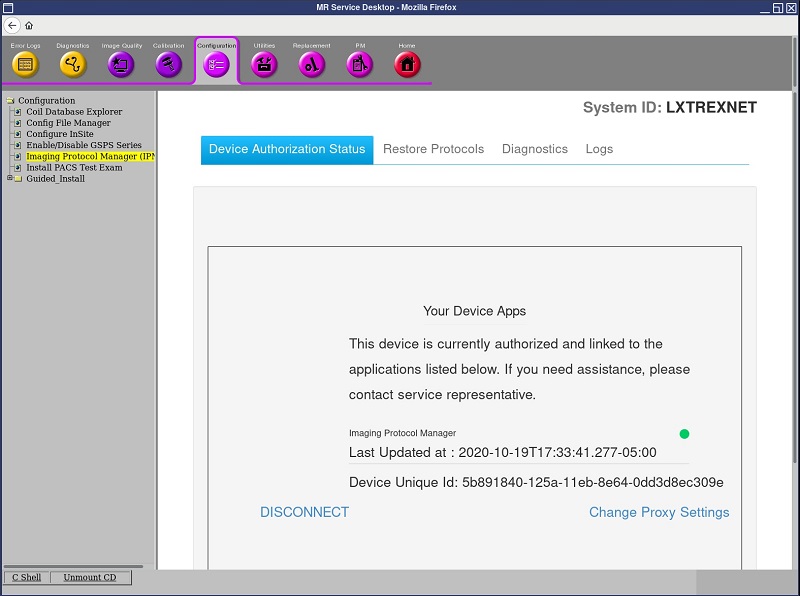
- If the Login tab with Get Connected displays, contact your service engineer for registration.
- The following tabs can be accessed when you are connected:
- Device Authorization Status displays a pop-up screen to disconnect or reconnect authorized devices.
- Restore Protocols
- Diagnostics displays a snapshot of the IPM and provides a screen that allows you to perform diagnostics.
- Logs displays an audit log level that details scanner activity with respect to Imaging Protocol Manager.
Figure 3. Imaging Protocol Manager (IPM) screen with tabs 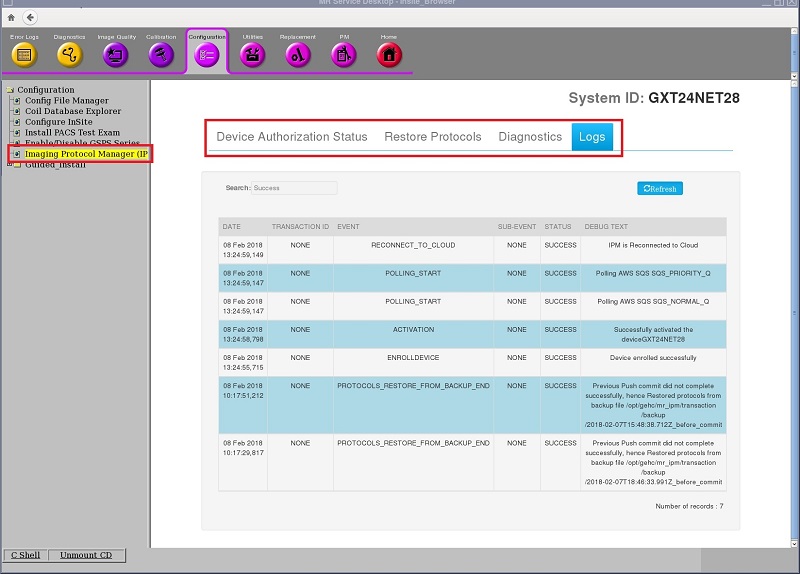
- To disconnect and reconnect, follow either of these steps.
- Click the Device Authorization Status tab, read the pop-up screen and respond to the query.
-
Note: You can also click DISCONNECT link from the Successfully connected screen and see the same pop-up screen.
- When the disconnect is successful, the polling icon becomes red, which indicates that polling has stopped.
Figure 4. Polling icon is red 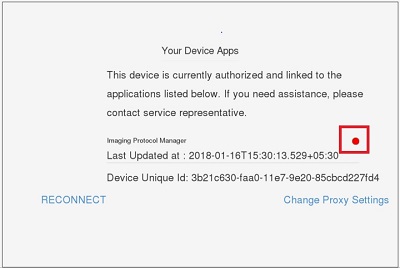
-
- Once the device is disconnected, the Successfully connected screen displays a RECONNECT link. Click RECONNECT, read the pop-up screen and respond to the query.
- When the reconnect is successful, the polling icon becomes green, which indicate that polling is active.
Figure 5. Polling icon is green 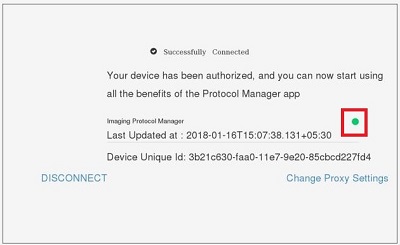
- When the reconnect is successful, the polling icon becomes green, which indicate that polling is active.
- Click the Device Authorization Status tab, read the pop-up screen and respond to the query.