

- 00000018WIA30575970GYZ
- id_400264421.4
- May 23, 2022 3:35:49 AM
Metabolite display procedures
About this task
Use these steps to manipulate the metabolite display.
Step-by-step instructions
- To change the metabolite view, follow these steps.
- From the review steps, click Metabolites.
- Metabolite maps appear in the bottom viewports.
- To change the metabolite view, click the active metabolite annotation and select a new metabolite from the list.
Figure 1. Example of Active metabolite annotation 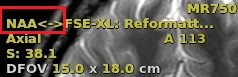
- From the review steps, click Metabolites.
- To define how the metabolite values are calculated, follow these steps.
- From the spectroscopy Review Steps, click Metabolites.
- Click the
 to display additional spectroscopy selections.
 - Click the Metabolites tab.
- From the Metabolites tab, Operator section, Select Max or Sum, which define how the metabolite values are calculated.
Figure 2. Operator section of Metabolites tab 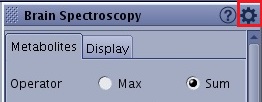
- Max is the maximum point in the range.
- Sum is the sum of the points.
- Adjust the sliders to the desired ppm for each metabolite you want to change.
- For example, the temperature setting for the phantom has not been adjusted and, therefore, the metabolite range is offset from the norm.
- Click Save to save your metabolite changes.
- Click Compute to update the metabolite values.
- To show metabolites within the voxel and to display the metabolite labels on the spectrum, follow these steps.
- From the spectroscopy Review Steps, click Metabolites.
- Click the to display additional spectroscopy selections.
- Click the Display tab.
- The Display tab allows you to select the metabolites or ratios you want displayed on a spectrum. The default setting is for all items in the list.
- From the Figure 1, click the options for how you want the metabolite maps displayed.
- The Show all voxels inside Pressboxtoggles the metabolite map inside/outside of the PRESS Box.
Figure 3. Metabolite map display 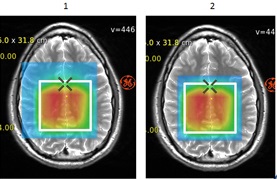
Table 1. Image legend Number Description 1 Show all voxels inside Pressbox is not selected and therefore metabolite maps display on the whole image. 2 Show all voxels inside Pressbox is selected and therefore metabolite maps only appear on the entire image. - The Show all voxel inside Pressbox toggles the spectra that appear in voxels. Note that you must draw first an ROI around the desired voxels.
Figure 4. Spectra in voxel display 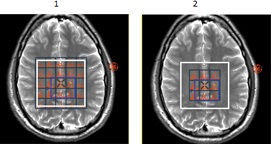
Table 2. Image legend Number Description 1 Show all voxel inside PRESS Box is selected and therefore displays spectra within all voxels in the PRESS Box. 2 Show all voxel inside PRESS Box is not selected and therefore only spectra within the deposited ROI appear.
- The Show all voxels inside Pressboxtoggles the metabolite map inside/outside of the PRESS Box.
- From the Display tab, click Select All.
- From the list of metabolites, press and hold Ctrl and click to remove the range displayed on the spectrum.
Figure 5. Example of User metabolites deselected so that they do not appear on the spectrum 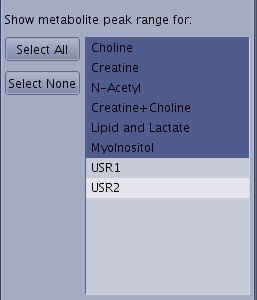
- User metabolites are not displayed by default.
- Click Select All if you want all metabolites in the list selected.
- Click Select None to remove all metabolite labels from the spectrum.
- The metabolite labels appear at the peak of each metabolite. The red line indicates the width of the peak.
Figure 6. Example of Metabolite displayed on spectrum 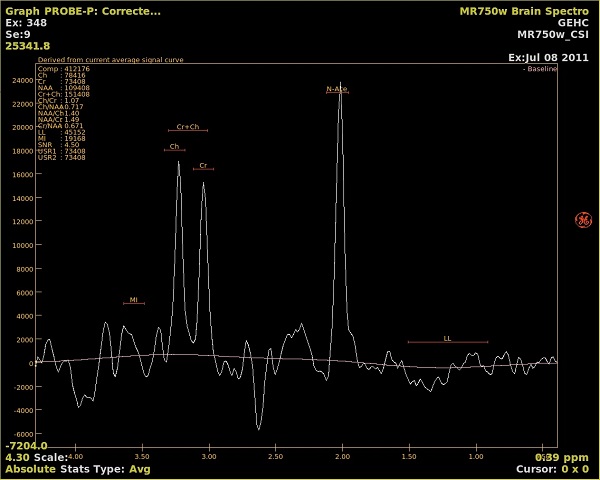
- To toggle the metabolite ratios text in the upper left corner from the graph view, right-click Show/Hide functional maps.
Figure 7. Example of Metabolite ratios text off/on spectroscopy graph view 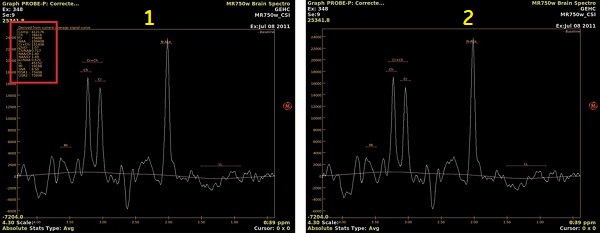
Table 3. Image legend Number Description 1 Show functional maps selected from right-click menu. 2 Hide functional maps selected from right-click menu. - Click Save All to save your metabolite selection list.
 Click Reset or Reset All to return to the original settings or factory settings. Click Save All to save changed selections as the new default values.