

- 00000018WIA3082A870GYZ
- id_400212741.2
- Feb 8, 2022 3:17:46 PM
Add an image from CD/USB
About this task
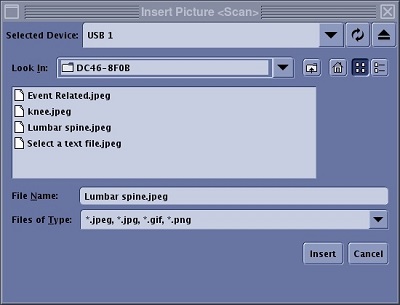
The compatible image types that can be inserted into a protocol note are displayed in the pull-down menu.

Step-by-step instructions
- From the Protocol Notes menu bar, click the
 .
. - From the Insert Picture screen, Selected Device menu, click the device that contains your images.
Figure 3. Select Device menu 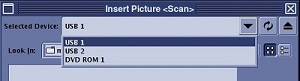
- The selected device displays the devices from which you can pull images:
- DVD ROM (the top drive in your system computer)
- DVD RW (the bottom drive in your system computer)
- USB device
- The
 returns you to the top level of the device your viewing.
 - The
 ejects the USB device or CD/DVD from the computer.
 - If the system does not recognize your USB device, then burn the images to a CD and load the images using the CD drive.
- The selected device displays the devices from which you can pull images:
- Navigate through the device and select the image you wish to insert into the protocol note.
- The Look In menu displays the device selected in the Select Device pull-down menu. The buttons to the right of the drop down menu are typically not used.
Figure 4. Look In menu 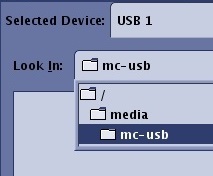
- The device contents area displays the contents of the selected device. You can open any of the folders and only images are displayed. Once an image is selected, an image preview is displayed next to the device contents list and the image file name is displayed in the File Name field.
Figure 5. Device content area 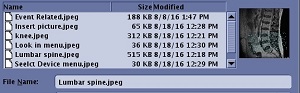
- The Look In menu displays the device selected in the Select Device pull-down menu. The buttons to the right of the drop down menu are typically not used.
- Click the from the Insert Picture screen to eject the USB device or the CD/DVD. Remove the media from the computer.