- 00000018WIA302DC970GYZ
- id_400230081.2
- Jan 27, 2022 5:47:48 PM
Pasting image manipulation
Use these steps to manipulate the pasted image.
Prerequisite: A Pasting session must be open.
Control panel icons
The following icons allow you to switch between the functionality of the middle mouse.
| Icon | Description |
|---|---|
 | Allows window width and level. |
 | Allows image scroll. |
 | Allows image magnification or zoom. |
 | Allows image page to quickly move through the series of images. |
| Icon | Description |
|---|---|
 | Resets the window width and level to the default value. |
 | Resets the magnification or zoom to the original value - not magnified. |
 | Density Norm adjusts the intensities of each station to be equal. |
| Icon | Description |
|---|---|
 | Toggles the overlap box on/off. |
| Icon | Description |
|---|---|
 | Recomputes the pasted images |
 | Saves the image |
 | Turns on automatic registration. |
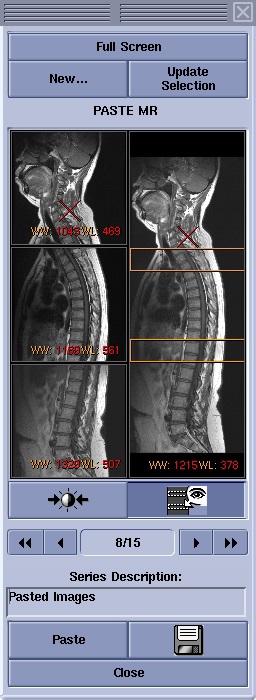
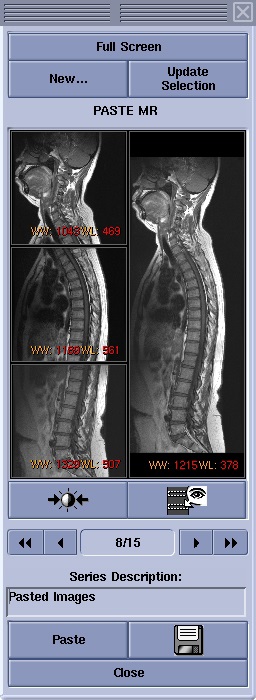
On-screen controls
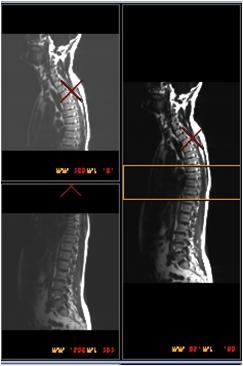
Red cross-hair cursor
As you move the red cross-hair cursor on one of the images, the location updates on the other images.
Preset W/L selections
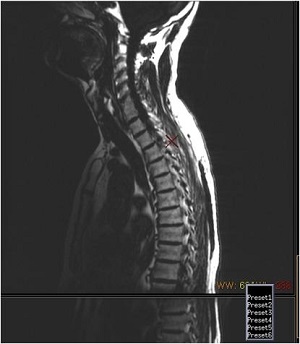
- Place the cursor over the red W/L text and left-click to display the Preset W/L menu.
- Select an option and the W/L changes to the preset values.
Figure 4. Preset W/L menu