

- 00000018WIA30BCC970GYZ
- id_400240721.3
- Feb 14, 2022 3:49:27 PM
Exam split
Use these steps to split a multi-anatomy and/or modality exam into separate exams. In this procedure, an exam was performed on the head and cervical spine using the Head and Neck spine coil.
- The original exam and series are not modified with Exam Split.
- An exam cannot be split if it is in use by another application.
- From the header area of the screen, click the
 to open the Image Management work area.
 - From the Patient List, select the exam you want to split and then select the series for the new exam.
Figure 1. Exam, series selection 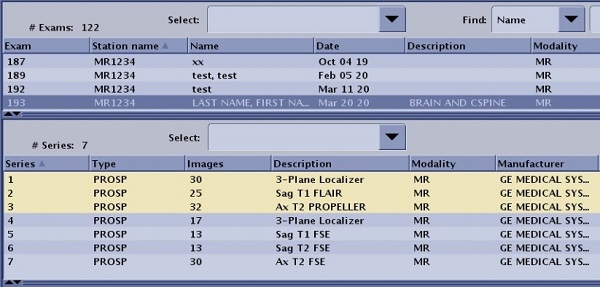
- From the Data Apps list, click Exam Split.
Figure 2. Data Apps list screen 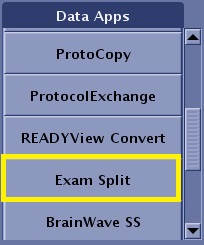
- From the Exam Split screen, complete the following steps:
- Enter an Accession Number.
- Enter an Exam Description.
- Click Proceed when you are satisfied with the changes.
Figure 3. Exam Split screen 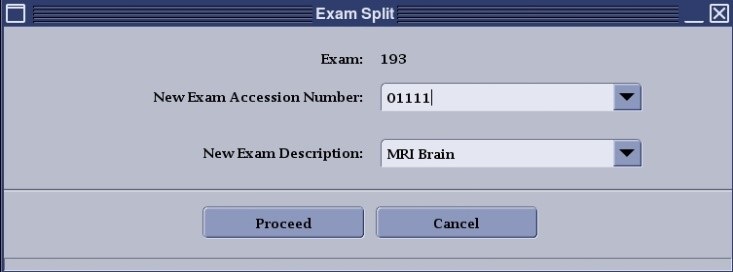
- The Patient list now displays two exams:
- The original unmodified exam.
- The new Exam with the selected series, the entered Accession Number and Exam Description.
Figure 4. Patient list with two exams 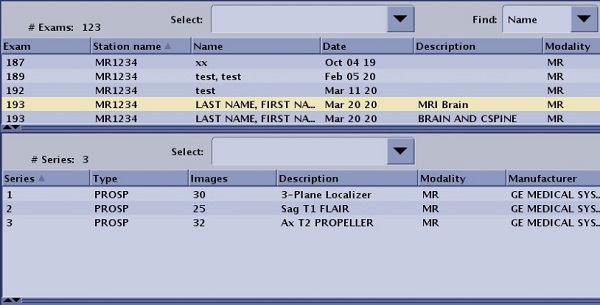
- From the header area of the screen, click the