- 00000018WIA30DCC970GYZ
- id_400216131.3
- Mar 25, 2022 4:59:40 PM
Multi-Exam Viewer
About this task
Use these steps to view multiple exams in a single Viewer.
Step-by-step instructions
- From the header area of the screen, click the
 to open the Image Management work area.
 - From the Session Apps list, click Multi-Exam Viewer to open a Viewer session with the selected exams.
Figure 1. Session Apps list 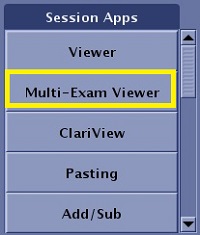
The first image in the first series for each exam is displayed in each of the four viewports.
- To select a unique series within a viewport, click the desired viewport to make it active and complete the following steps from the Data Selector:
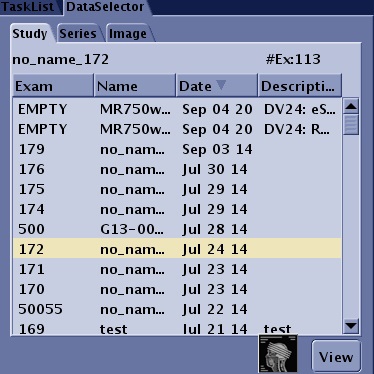
- Click the Study tab and the desired exam.
- Click the Series tab and the desired series.
- Click the Image tab and the desired image number.All viewports update to the selected image number. To have each viewport display a unique number, deactivate the link. For details, see Link or unlink viewports.
- Click View.
Figure 2. Data Selector exam area