- 00000018WIA302F9870GYZ
- id_400213011.1
- Feb 8, 2022 2:50:22 PM
Notification considerations
When protocols are received from the cloud to the scanner, the following occurs:
- The scanner performs compatibility checks.
- Once the cloud sends the protocols to the device, a screen is provided with a notification to install or postpone the newly downloaded protocols.
Figure 1. Install notification screen 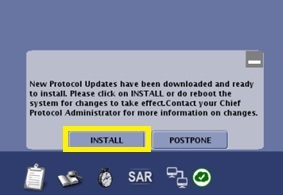
INSTALL considerations
Click INSTALL and the protocols update on the protocol management screen without a scanner reboot. A confirmation prompt appears.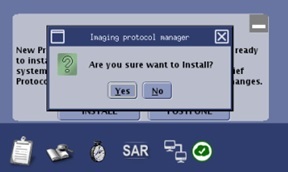
- Click Yes to the confirmation prompt and the downloaded protocols are installed on the scanner. This icon (
 ) is displayed in the footer area of the screen until another set of protocols are downloaded from the Cloud.
 - Click No to the confirmation prompt and the message is minimized. To open it at a later date, click the orange icon (
 ) located in the footer area of the screen.
POSTPONE considerations
Click POSTPONE and the following occurs:- The INSTALL/POSTPONE message is minimized.
- The icon color changes to orange ().
- Click the orange icon to reopen the message.
- Reboot the scanner for the downloaded protocols to be committed to the Site library
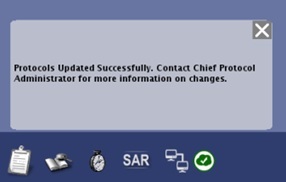
- Once protocols are successfully transferred to the scanner, a notification message is displayed in the footer area of the screen. Click the X in the screen message to close the message.
Figure 3. Protocol transfer message