

- 00000018WIA30F58970GYZ
- id_400234291.3
- Mar 28, 2022 3:52:38 PM
View Main EigenVector
About this task
Step-by-step instructions
- From the Review Steps area, click Main EigenVector.
Figure 1. Review steps for FiberTrak protocol 
- Magnify the image to see the color orientation of the Main EigenVector.
- For details, see:
- Change the image magnification or minification
- Adjust the image Window Width and Level
Figure 2. Main EigenVector display 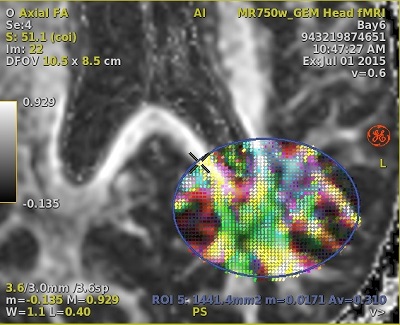
- Below are examples of pixels within an ROI.
Figure 3. Pixels from an ROI that is comprised of white matter tracts oriented in the sagittal direction 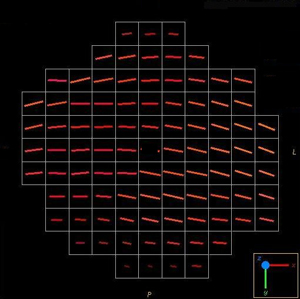
- Some vectors are a combination of multiple orientations. For example, some vectors may be yellow indicating that the white matter represented in the pixel is oriented in both the Z and Y (blue + green = yellow) directions.
Figure 4. Pixels from an ROI that is comprised of white matter tracts oriented in multiple directions illustrated by the mix of vector colors 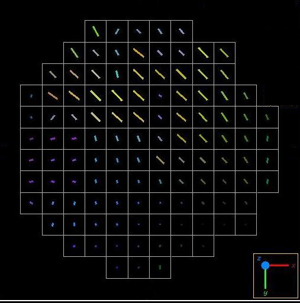
- Some vectors are a combination of multiple orientations. For example, some vectors may be yellow indicating that the white matter represented in the pixel is oriented in both the Z and Y (blue + green = yellow) directions.
- For details, see: