

- 00000018WIA30B58970GYZ
- id_400247301.3
- Mar 28, 2022 3:51:16 PM
Change fiber tract color
About this task
Step-by-step instructions
- Each time you add a new tract, the system automatically assigns a tract color. To change the color of the tract:
- Click the color icon next to the trash can and a color palette appears.
- Click and drag the color cursor over the desired color.
- Click the X on the color palette window to close it.
Figure 1. Color palette appears when you click the color icon 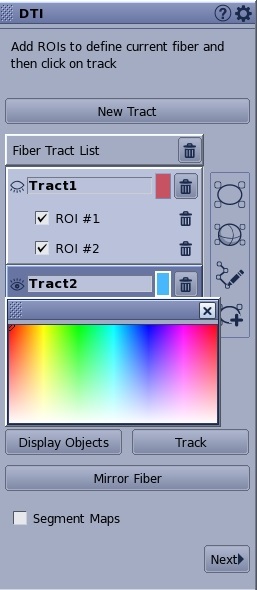
- To apply color scheme to the fiber tracts, follow these steps.
- Place the cursor in the fiber tract viewport.
- Left-click Default in the lower right-corner of the fiber tract viewport.
- From the Default menu, click User Color or, make another selection from the menu.
Figure 2. Default menu 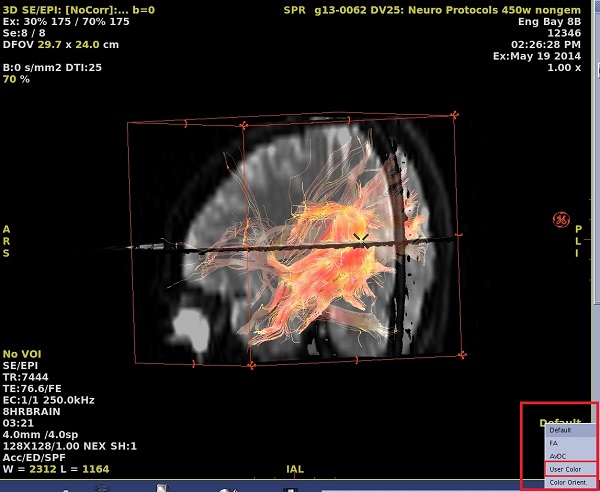
Figure 3. FiberTrak right-click color options 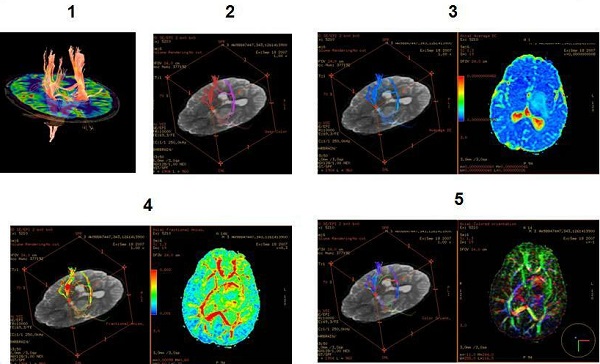
Table 1. Image legend Number Description 1 Default is the color defined by the system. 2 User color is the custom color you define. 3 AvDC (Average DC) is the color scheme used with an ADC map. 4 FA (Fractional Anisotropic) is the color scheme used with an FA map. 5 Color orientation is the color scheme used in the colored orientation view.