Use these steps to record an AutoVoice message for pre and post site instructions. A message cannot be created, deleted, overwritten, previewed, or modified if a patient exam is opened or a scan is in progress. You can playback a message, but no recording is allowed, regardless of whether AutoVoice is turned on or off in any of your series.
Step-by-step instructions
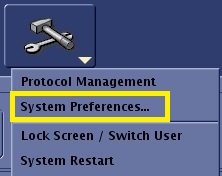
From the Tools menu, select Preferences to open the System Preferences screen.
Figure 1. Tools menu
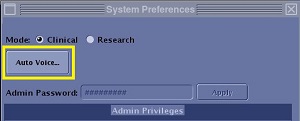
From the System Preferences screen, click Auto Voice... to open the AutoVoice Management Tool screen.
Figure 2. Top area of System Preferences screen
Click Close to close the System Preference screen.
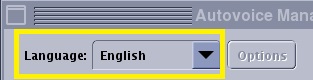
From the Language menu, select a language.
Figure 3. AutoVoice Management Tool language menu
Select a site message set that you want to modify or select new message... at the end of the site message list to create a new message.
The maximum number of site messages per language is 99.
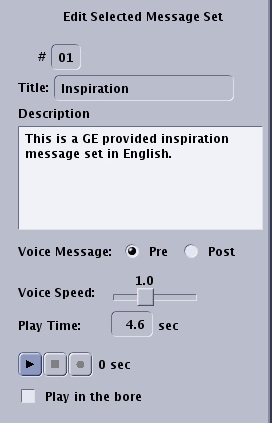
In the Edit Selected Message Set area, complete the following.
Figure 4. Edit Selected Message Set area of the Autovoice Management Tool screen
In the Title text box, type a message title.
The following characters can be placed in the message title and description: [0-9], [a-z], [A-Z], [ !”#$%&’()*+,-./:;<=>?@[\]^_`{|}~]
In the Description text box, type a description of the message.
Select Pre or Post.
Adjust the slider for the Voice Speed.
The speed is displayed above the slider and the message playtime is displayed in the text box.
Applications include shortening the delay after the trigger with SmartPrep or Fluoro Trigger. and shortening the delay between phases of a Multi Phase scan.
Click the to start the record process.
An AutoVoice message cannot exceed 25 seconds.
Click the when you are finished recording.
Click the to play back your message.
If you click the Record button again, a prompt appears warning that you will over write your message. Click OK if you want to re-record your message.
Optional: Select Play in the bore as a quality check to playback the message from the patient speaker.
Click Accept to apply the changes and to close the AutoVoice Management Tool screen.


 to start the record process.
 when you are finished recording.
 to play back your message.