

- 00000018WIA30614970GYZ
- id_400213981.4
- Jun 21, 2022 4:22:55 PM
oZTEo (MR bone)
oZTEo is not available on 32-channel systems.
About this task
oZTEo (MR Bone) is a type-in, 3D, Gradient Echo, Fast SPGR sequence that uses a ZTE (zero TE) Acquisition for 3D k-space data acquired in radial trajectories. It creates images with bright bone signal, flat soft tissue, and an inverted grayscale.
oZTEo (MR Bone) is useful for post-processing with MR General Review for better visualization of bone surfaces.

Use these steps to acquire bright bone images and flat soft tissue images.
Step-by-step instructions
- Make protocol adjustments, as needed.
Figure 2. Detail screen 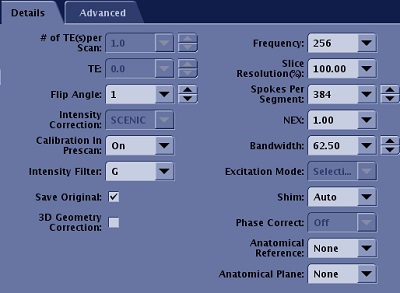
- Select SCENIC as the Intensity Correction, an oZTEo requirement.
- oZTEo is incompatible with coils that do not support SCENIC.
- Select a noise reduction Intensity Filter (for example G).
- Optional: select Save Original option so that two DICOM series are reconstructed:
- DICOM series with SCENIC Intensity Correction, Intensity Filter with G and an inverted contrast (bone is bright).
- Original DICOM series is without SCENIC Intensity Correction, without Intensity Filter G, but has inverted contrast (bone is bright).
- oZTEo can be acquired in any plane: axial, sagittal, coronal, oblique.
- Select a flip angle of 1 or 2.
- Select a Bandwidth between ±50 to ±100 kHz.
- A larger BW leads to a more uniform or flat soft tissue contrast.
- From the scan parameter screen, review the Pixel Size display.
- The Frequency and Frequency FOV affect the Pixel Size value. Change either the Frequency or Frequency FOV value and the Pixel Size display updates.
-
Note: that the Slice Thickness value must not be smaller than the Pixel Size.
- An approximately isotropic pixel resolution is recommended to aid 3-plane reformatting. Prescribe Graphic Rx as appropriate for your needs.