About this task
Use these steps to create a curved distance measurement.Figure 1. Curved measurement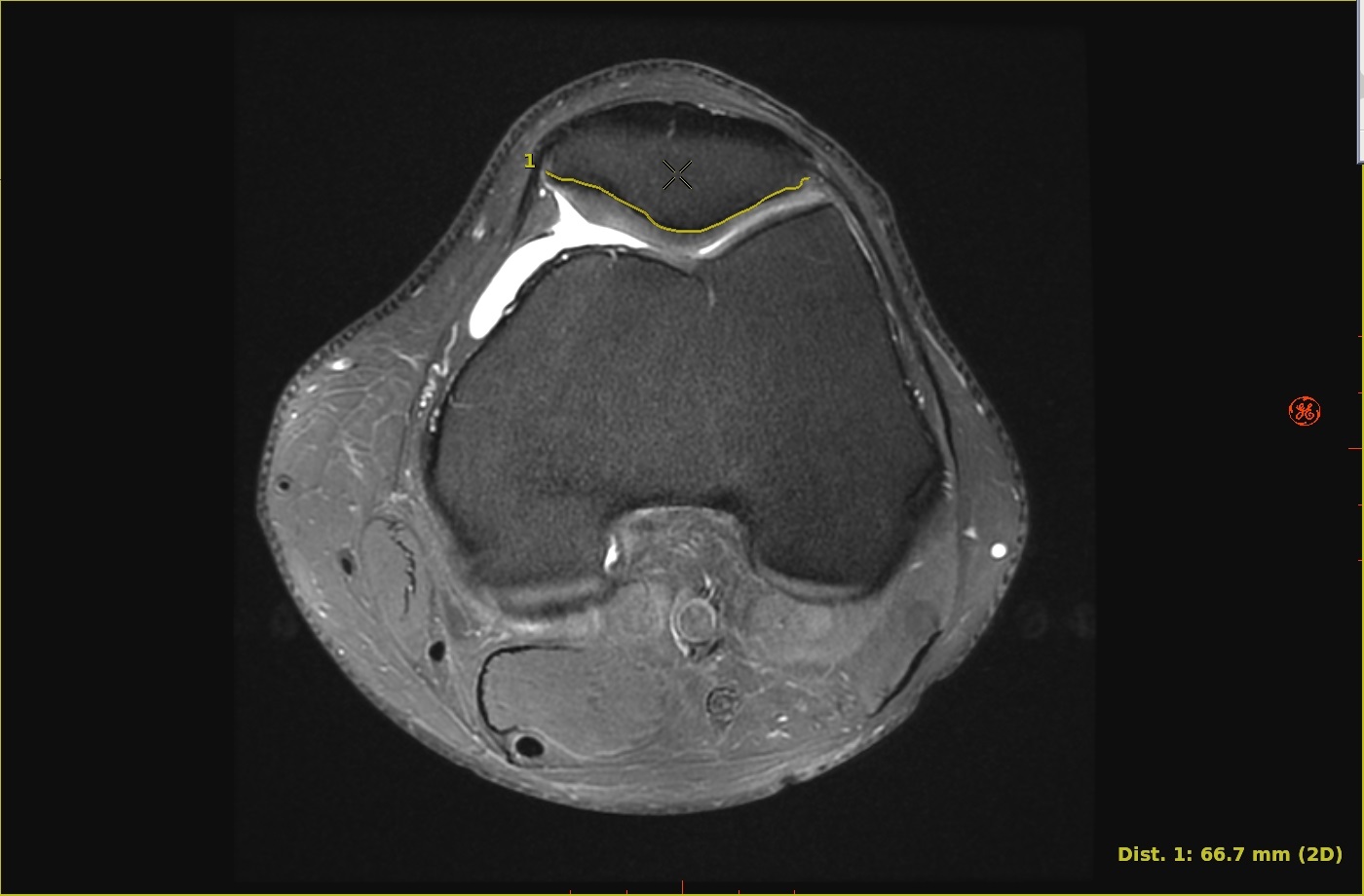
Step-by-step instructions
- Open the Volume Viewer.
- From the Measure/Annotate Toolbar, click the Curved Distance icon (
 ).
). - Follow these steps to create a curved measurement.
- Place the cursor over the start point of the curved measurement.
- Click and drag the cursor or left-click to deposit each point along the curve to define the distance.
- Right-click to end the measurement.
- When endpoints are deposited on the same plane on a 2D or 3D image, the distance measurement is set as 2D.
- When endpoints are deposited at different depths on a 2D image, the distance measurement is set as 3D.
- To reshape the curved measurement, see the resize/rotate image graphic procedure.
- To deactivate the measurement, click anywhere away from the measurement within the viewport.
- To remove the measurement, see the remove image graphics procedure.

