Use these CIET (Clinical Image Extraction Tool) steps to anonymize exams and then place them in a specific location so that InSite can pull the images for analysis.
Step-by-step instructions
From the header area of the screen, click the to open the Image Management work area.
From the Patient List, follow these instructions to save images at different levels:
To save a particular image, select the image.
To save multiple images, select each image within a series.
To save an entire series, select all of the images in the series.
To save multiple series, select each series within the exam.
To save an entire exam, select all of the series in the exam.
To save multiple exams, select the exams (two or more).
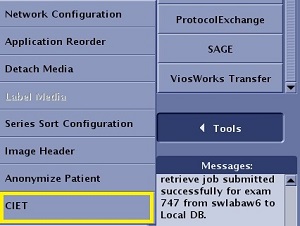
Click Tools > CIET .
Figure 1. Tools
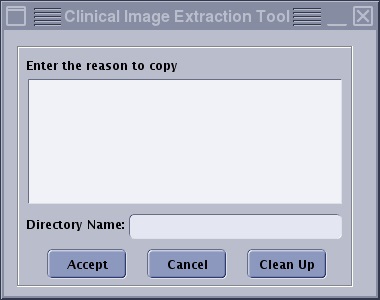
From the Clinical Image Extraction Tool screen, enter the following information:
In the Enter reason to copy text box, type a description of what you want analyzed on the image.
In the Directory Name text box, type the exam number. Figure 2. Clinical Image Extraction Tool screen
Click Accept.
Communicate to the online center that a copy of the series or images has been sent to the directory named in the Directory Name field.
Because a copy of the series or images is now in the specified directory, you can delete the series or images, if desired.


 to open the Image Management work area.